
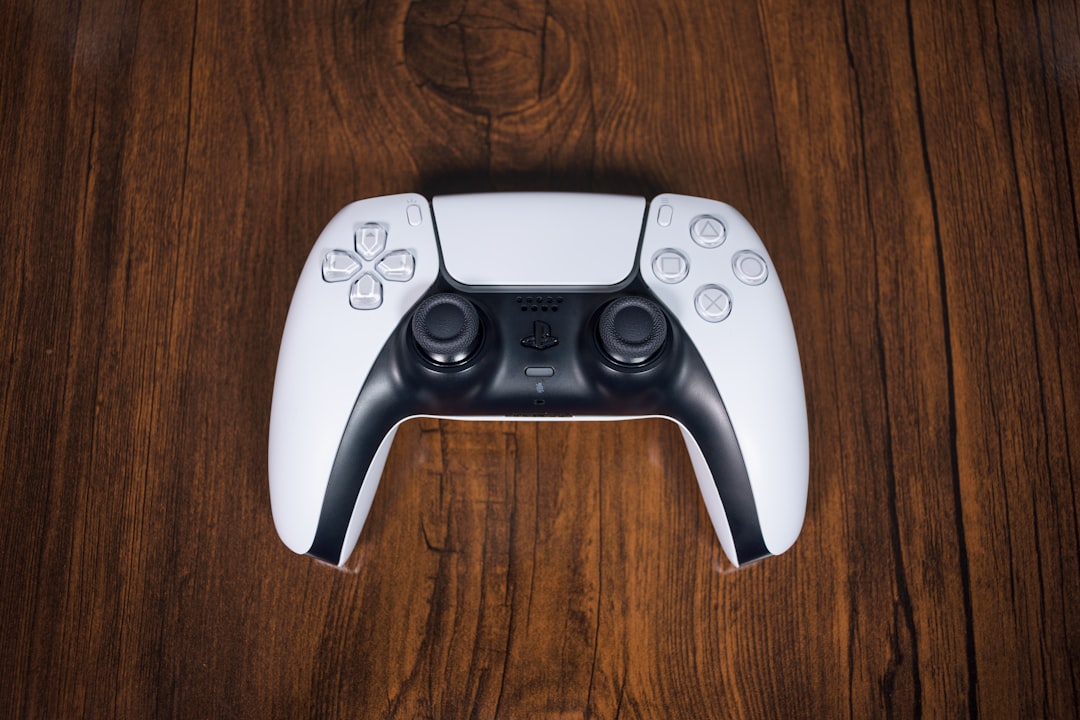
When a PlayStation 5 shuts down in the middle of a game, the cause is usually not random at all. The console may be protecting itself from heat, struggling with dust-blocked airflow, reacting to unstable power, or dealing with a software-related crash. Because PS5 games can push the hardware hard, especially graphically intense titles, a small cooling or power issue can quickly become a full shutdown.
TLDR: A PS5 that randomly shuts down during gaming is often overheating, clogged with dust, or receiving unstable power. The console owner should first improve ventilation, clean the vents and fan area, and check the power cable, wall outlet, and surge protector. If shutdowns continue, software updates, database rebuilding, and professional inspection may be needed. Ignoring repeated shutdowns can risk corrupted data or long-term hardware damage.
Contents
Why a PS5 Shuts Down During Gaming
A PS5 may shut down suddenly when the system detects a condition that could damage internal components. Instead of allowing the processor, graphics hardware, or power supply to operate under unsafe conditions, the console powers off to protect itself. This can happen without a warning screen, leaving the player confused and possibly worried about saved data.
The problem often appears during demanding games because those titles increase heat output and power draw. A PS5 may stream video, browse menus, or run smaller games without issue, then shut down when a large open-world game, a performance mode, or a high frame rate setting puts more pressure on the hardware.
Common causes include poor ventilation, dust build-up, power supply problems, damaged cables, system software bugs, and internal hardware faults. The best approach is to check each possibility in a logical order, starting with the simplest and safest fixes.
Overheating: The Most Common Cause
Overheating is one of the leading reasons a PS5 shuts down during gameplay. The console needs steady airflow to move hot air away from the internal processor, graphics chip, memory, and power components. If the PS5 is placed in a cramped entertainment cabinet, close to a wall, or near another heat source, the system may not cool itself properly.
A console owner should check whether the PS5 feels unusually hot around the vents after a shutdown. Some warmth is normal, but excessive heat, loud fan noise, or shutdowns that happen after 20 to 60 minutes of gaming can point to a cooling issue.
Image not found in postmeta
Better Placement for Cooling
- Leave open space around the console: The PS5 should have several inches of clearance on all sides, especially near the rear and side vents.
- Avoid closed cabinets: A cabinet can trap warm air, even if the front is open. Hot air needs somewhere to escape.
- Keep it away from heat sources: Radiators, sunny windows, amplifiers, and other consoles can increase the surrounding temperature.
- Use the stand correctly: Whether placed vertically or horizontally, the official stand helps keep the console stable and properly positioned.
- Do not cover the vents: Cloth covers, decorations, and objects placed nearby can block airflow.
If the PS5 stops shutting down after being moved into a more open area, overheating was likely the main cause. In that case, the owner should keep the console in the new location and monitor fan noise and performance during longer gaming sessions.
Dust Build-Up and Blocked Airflow
Dust build-up can slowly create the same symptoms as poor ventilation. Over time, dust collects around vents, fan blades, and internal intake areas. The PS5 can pull in air less efficiently, causing the cooling system to work harder. Eventually, the fan may become louder, the console may get hotter, and shutdowns may occur during demanding games.
Homes with pets, carpets, smoke, or high dust levels can develop build-up faster. A console placed near the floor may also collect more dust than one placed on a clean shelf or desk.
Safe External Cleaning
Before cleaning, the console should be fully powered off, unplugged, and allowed to cool. The owner should never clean the console while it is running. A soft microfiber cloth can be used to wipe the exterior, while a low-powered vacuum can help remove loose dust near the vents. Compressed air should be used carefully, because forcing dust deeper into the console can make the problem worse.
- Turn off the PS5 completely, not just Rest Mode.
- Unplug the power cable, HDMI cable, and accessories.
- Move the console to a clean, well-lit area.
- Wipe the outer shell and vent areas with a dry microfiber cloth.
- Use gentle suction near vents to remove loose dust.
- Reconnect the console and test it with a demanding game.
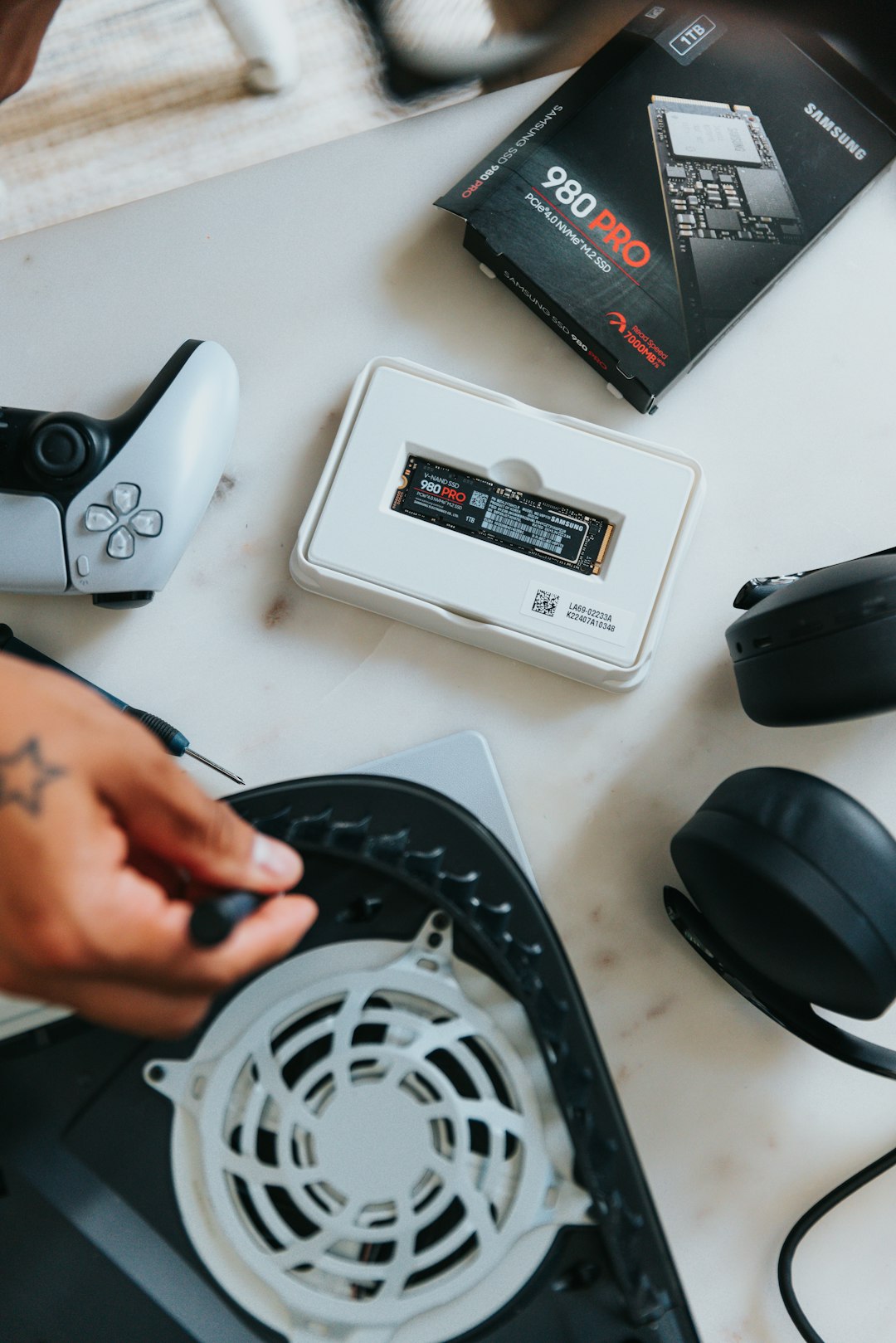
Cleaning the Fan Area
The PS5’s side panels can be removed without fully disassembling the system, allowing access to certain dust collection areas and the fan region. However, the owner should proceed carefully and follow Sony’s official guidance or a trusted repair guide. If the console is under warranty, the owner should avoid actions that could risk warranty coverage.
If the fan is heavily clogged, an experienced technician may be the safest option. A professional can clean deeper dust deposits and inspect the fan, thermal behavior, and internal power components. This is especially important if the console shuts down frequently even after basic cleaning.
Power Supply and Electrical Issues
A PS5 can also shut down because it is not receiving stable power. The issue may come from the wall outlet, surge protector, power strip, power cable, or the console’s internal power supply unit. Since high-performance gaming increases power demand, a weak connection may only fail when the console is under load.
The owner should check whether the shutdown is instant, with no overheating warning and no slow slowdown beforehand. If the console turns off as if the plug was pulled, an electrical issue becomes more likely.
Power Checks to Perform
- Inspect the power cable: The cable should fit firmly into the PS5 and the outlet. Frayed, bent, or damaged cables should be replaced.
- Try a different wall outlet: A failing outlet or loose socket can interrupt power during gameplay.
- Avoid overloaded power strips: The PS5 should not share a weak power strip with many high-demand devices.
- Test without a surge protector: Some old or faulty surge protectors can cause unstable power delivery.
- Use proper voltage conditions: The console should be used in a region and setup compatible with its power requirements.
If the PS5 works normally in a different outlet, the original outlet or power strip may be the problem. If shutdowns continue across multiple outlets and cables, the internal power supply may require professional service.
Software, Firmware, and Game Problems
Not every shutdown is caused by heat or electricity. A system software bug, corrupted database, or problematic game file can cause crashes that resemble power failures. Although this is less common than heat-related shutdowns, it is worth checking before assuming hardware damage.
The owner should make sure the PS5 system software is fully updated. Game updates should also be installed, especially if shutdowns happen with one specific title. If only one game triggers the problem, corrupted game data may be involved. Deleting and reinstalling that game can sometimes help.
Useful Software Fixes
- Update system software: Install the latest PS5 firmware from the system settings.
- Update the affected game: Check for patches that fix crashes or performance bugs.
- Rebuild the database: Safe Mode offers a database rebuild option that can improve system organization without deleting games.
- Clear system cache: Safe Mode also provides options that may resolve temporary software conflicts.
- Reinstall the game: If one title causes shutdowns, a fresh installation may remove corrupted files.
These software steps are generally safe, but the owner should still back up important saved data whenever possible. Repeated sudden shutdowns can increase the risk of data corruption.
Rest Mode and External Accessories
Some shutdown-related issues can be connected to Rest Mode or external accessories. If the PS5 behaves oddly after waking from Rest Mode, the owner may test the console by fully shutting it down after each session instead. This can help determine whether the problem is tied to sleep-state recovery rather than heat or power.
External storage drives, USB hubs, capture cards, and other accessories can also introduce instability. A failing external drive may cause crashes, while a USB device that draws too much power may create unexpected behavior. Testing the PS5 with only the power cable, HDMI cable, and controller connected can help isolate the issue.
Image not found in postmeta
Signs the PS5 Needs Professional Repair
If basic cleaning, better ventilation, power checks, and software updates do not stop the shutdowns, the console may have an internal hardware problem. Possible causes include a failing fan, degraded liquid metal contact, damaged internal power supply, faulty motherboard component, or sensor problem.
Professional repair becomes more important when the console shuts down within minutes, refuses to power back on immediately, displays repeated overheating messages, smells like burnt electronics, or makes unusual buzzing or clicking sounds. In those cases, continuing to test demanding games may make the problem worse.
If the PS5 is still under warranty, the owner should contact Sony or the original retailer before opening the console. Unauthorized repairs or deep disassembly may affect warranty rights. For out-of-warranty systems, a reputable repair shop with PS5 experience is the safest option.
Prevention Tips for Long-Term Reliability
Preventing future shutdowns is easier than repairing repeated failures. The console owner should keep the PS5 in an open, clean, and cool location. It helps to dust the entertainment area regularly, keep pets from sleeping near the console, and avoid placing the PS5 directly on carpet.
A monthly visual inspection of the vents can catch dust before it becomes a serious blockage. During hot seasons, the owner may also reduce room temperature, improve airflow, or avoid marathon gaming sessions in a sealed cabinet. The PS5 is designed for demanding games, but it still depends on proper airflow and stable power.
- Keep at least several inches of clearance around all vents.
- Clean visible dust before it collects heavily.
- Use a reliable wall outlet and avoid loose power connections.
- Install system and game updates regularly.
- Shut down the console properly instead of unplugging it.
- Back up saved data to cloud storage or USB when possible.
FAQ
Why does the PS5 shut down only when gaming?
Gaming places the highest demand on the PS5’s processor, graphics hardware, cooling system, and power supply. If heat, dust, or power delivery is already borderline, a demanding game can trigger a shutdown while lighter activities do not.
Can dust really make a PS5 turn off?
Yes. Dust can block airflow and reduce cooling efficiency. When internal temperatures rise too high, the PS5 may shut down to protect itself from damage.
Is it safe to vacuum the PS5 vents?
Gentle suction near the exterior vents can help remove loose dust, but the owner should avoid aggressive vacuuming or forcing tools into the console. The PS5 should always be unplugged before cleaning.
Should the PS5 be vertical or horizontal to prevent shutdowns?
Either position can work if the stand is used correctly and the vents are not blocked. Placement, airflow, and cleanliness matter more than vertical or horizontal orientation.
Can a bad power strip cause random PS5 shutdowns?
Yes. A faulty or overloaded power strip can interrupt power during high-demand gaming. Testing the PS5 directly in a reliable wall outlet can help identify this issue.
What should be done if the PS5 still shuts down after cleaning?
The owner should check the power cable, outlet, software updates, Safe Mode options, and external accessories. If the issue continues, professional inspection is recommended, especially if the console is under warranty or shuts down very quickly.