
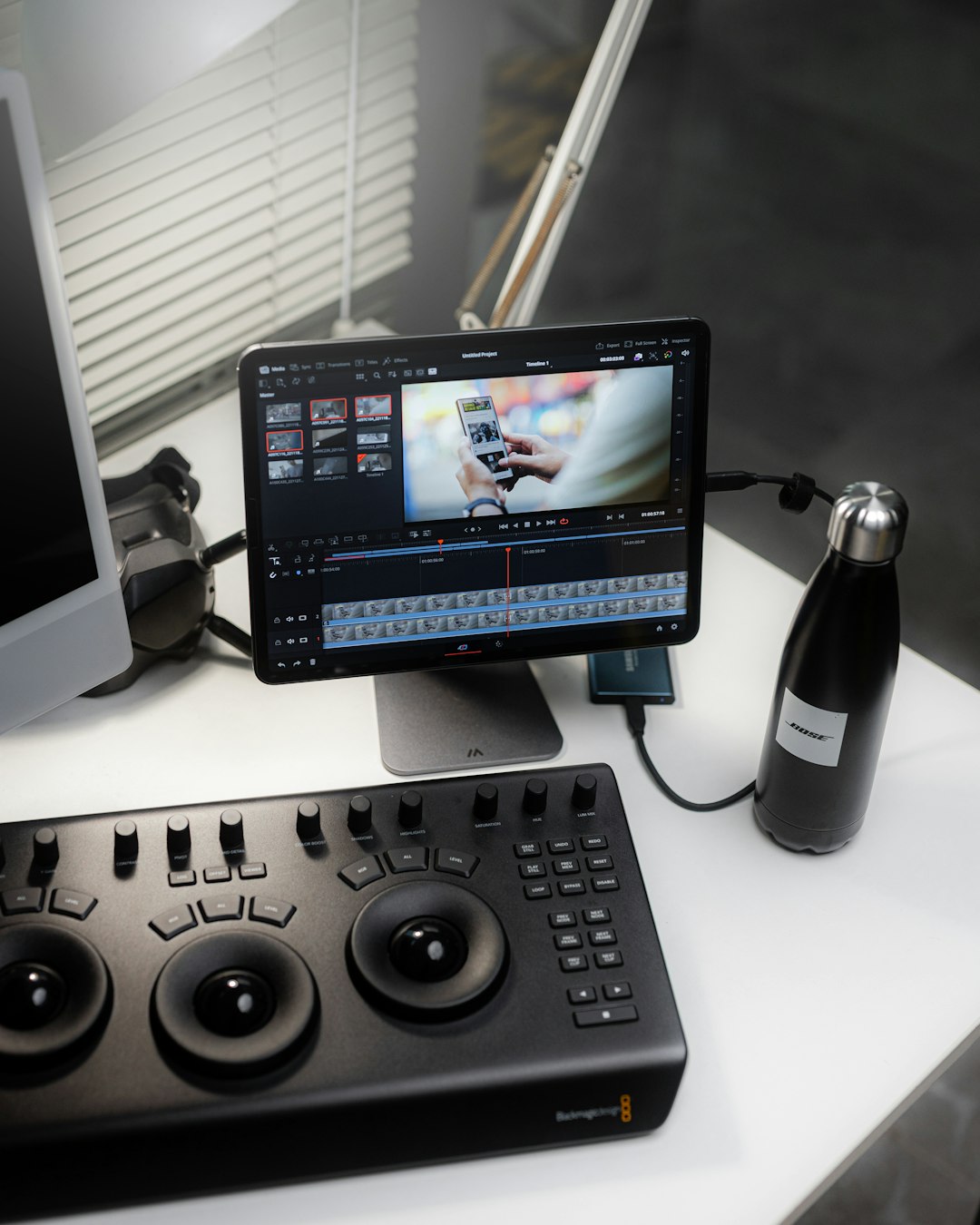
CapCut is a powerful and widely used video editing application, but many users encounter a frustrating issue: transition lag. When transitions stutter, freeze, or render slowly, the overall editing process becomes inefficient and the final video may look unprofessional. Fortunately, most transition lag problems are caused by identifiable performance bottlenecks that can be fixed with a few practical adjustments.
TLDR: CapCut transition lag usually happens بسبب low device performance, high-resolution footage, outdated software, or insufficient storage. To fix it, lower preview resolution, clear cache, enable proxy files, update your app and drivers, and close background programs. If lag persists, consider upgrading hardware or optimizing export settings. Most issues can be resolved in minutes with the right approach.
Contents
Why Do CapCut Transitions Lag?
Before applying solutions, it’s important to understand the underlying causes. Transition lag is rarely random. It usually results from one or more of the following:
- High-resolution footage (4K or higher)
- Limited RAM or weak CPU/GPU
- Full storage or fragmented disk space
- Outdated CapCut version
- Too many effects layered together
Transitions require real-time processing of two clips simultaneously, often blending effects, motion blur, color grading, and animation curves. If your system cannot process this data fast enough, preview lag appears.

1. Lower the Preview Resolution
The first and most effective fix is adjusting preview resolution. Many users edit in full resolution without realizing that preview quality does not affect final export quality.
How to do it:
- Open your project in CapCut.
- Locate the preview quality settings.
- Switch from Full to Half or Quarter resolution.
This reduces the processing demand during editing while keeping the final export in full quality. For most cases, this single change eliminates transition stuttering.
2. Enable Proxy Files (If Available)
Proxy editing creates lower-resolution copies of your original footage for editing purposes. The final export still uses the original high-quality files.
Benefits of proxy editing:
- Smooth timeline playback
- Faster transition rendering
- Reduced CPU/GPU strain
If you are working with 4K or high-bitrate files, enabling proxy files can significantly improve performance.
3. Clear Cache and Temporary Files
Cache build-up is a hidden cause of many performance issues in CapCut. Large temporary files consume storage and slow system performance.
Steps to clear cache:
- Go to CapCut settings.
- Select Storage or Cache management.
- Clear temporary files.
Additionally, ensure your device has at least 15–20% free storage space available. Systems with nearly full storage often struggle with video rendering tasks.
4. Close Background Applications
Video editing requires considerable system resources. Running multiple applications simultaneously—such as browsers, gaming apps, or streaming services—can drain memory and processing power.
Recommended action:
- Close unnecessary applications.
- Disable startup programs.
- Use Task Manager (Windows) or Activity Monitor (Mac) to monitor resource usage.
A system operating above 80% CPU or RAM usage is more likely to experience transition lag.
5. Update CapCut and Graphics Drivers
Outdated software often causes compatibility and performance issues. CapCut developers frequently release updates to optimize playback and fix rendering bugs.
Make sure to update:
- CapCut application
- Graphics card drivers (NVIDIA, AMD, Intel)
- Your operating system
Updating GPU drivers is particularly important because transitions typically rely on hardware acceleration.
6. Reduce Effects and Layer Complexity
Stacking multiple filters, effects, text animations, overlays, and transitions on the same timeline section increases rendering load exponentially.
To optimize performance:
- Remove unnecessary effects.
- Pre-render complex sections if possible.
- Avoid overlapping transitions.
- Merge layers when editing is finalized.

7. Adjust Hardware Acceleration Settings
CapCut typically uses hardware acceleration to speed up rendering. However, in some cases, disabling and re-enabling it can resolve glitches.
Steps:
- Open Settings.
- Locate Hardware Acceleration.
- Toggle it off, restart CapCut, then test playback.
- If needed, toggle it back on.
This simple reset can correct conflicts between CapCut and your GPU.
8. Optimize Export Settings to Prevent Final Lag
Sometimes users mistake export rendering time for transition lag. If exporting is slow:
- Match export resolution to project resolution.
- Avoid unnecessarily high bitrate settings.
- Choose hardware encoding if available.
Exporting 4K at extremely high bitrates can significantly increase render time without noticeable quality improvement.
When Hardware Upgrades Become Necessary
If you’ve applied all optimization techniques and still experience lag, your device may not meet modern video editing requirements.
Recommended minimum specs for smooth CapCut editing:
- 16GB RAM
- SSD storage (not HDD)
- Dedicated GPU
- Modern multi-core processor
Editing 4K video on 8GB RAM with integrated graphics often results in persistent transition lag.
Performance Fix Comparison Chart
| Solution | Difficulty Level | Effectiveness | Cost |
|---|---|---|---|
| Lower Preview Resolution | Very Easy | High | Free |
| Enable Proxy Files | Easy | Very High | Free |
| Clear Cache | Easy | Moderate | Free |
| Close Background Apps | Very Easy | Moderate | Free |
| Update Drivers | Moderate | High | Free |
| Hardware Upgrade | Advanced | Very High | High |
Common Mistakes That Make Transition Lag Worse
Many users unintentionally create additional lag while trying to fix it. Avoid these mistakes:
- Editing directly from external drives without SSD speed
- Using heavily compressed downloaded footage
- Ignoring overheating issues
- Running antivirus scans during editing
Thermal throttling can also reduce CPU performance. Ensure your device has adequate cooling.

Mobile CapCut Transition Lag Fixes
If you’re using CapCut on a mobile device, transition lag often results from limited RAM and storage.
Mobile optimization tips:
- Close background apps completely.
- Restart your phone before intensive editing.
- Delete unused media files.
- Avoid editing while battery saver mode is enabled.
Older phones may struggle with complex template-based transitions, especially those containing particles or 3D effects.
Final Thoughts
Transition lag in CapCut is almost always a performance optimization issue rather than a software defect. By lowering preview resolution, enabling proxy files, clearing cache, updating drivers, and simplifying effects, most users can quickly restore smooth editing performance.
For professionals and content creators working consistently with high-resolution footage, investing in better hardware and SSD storage provides long-term stability. CapCut is capable of delivering smooth, high-quality transitions—but it requires a properly optimized environment.
By following this structured approach, you can eliminate transition lag and maintain an efficient, reliable editing workflow.