
Marketing a Mac toolkit or utility app requires a careful balance between technical credibility and clear customer value. Your flyer should not simply announce that an app exists; it should explain why the app deserves trust, how it saves time, and what specific Mac problems it solves. Whether you are promoting a cleanup tool, file manager, backup utility, password helper, productivity enhancer, or system monitoring app, the best flyer ideas are those that make complex features feel practical, safe, and immediately useful.
TLDR: A strong flyer for a Mac toolkit or utility app should focus on clarity, trust, and measurable benefits. Use clean visuals, concise feature explanations, and proof points such as security, speed, compatibility, and user outcomes. Avoid exaggerated claims and instead show how the app solves real Mac problems. The most effective flyers combine professional design with a focused call to action.
Contents
Start with a Clear Problem and a Practical Solution
The strongest flyer ideas begin with a problem your audience already understands. Mac users may be dealing with low storage, duplicate files, slow startup times, disorganized folders, privacy concerns, or complicated maintenance tasks. A flyer that opens with a clear pain point feels relevant immediately.
For example, instead of using a vague headline such as “The Ultimate Mac Utility”, consider something more precise: “Free Up Space, Organize Files, and Keep Your Mac Running Smoothly.” This statement tells readers what they can expect without sounding exaggerated.
A serious flyer should answer three questions quickly:
- What problem does the app solve?
- How does it help the user save time, improve performance, or reduce risk?
- Why should the user trust this app with their Mac?
When these answers are easy to find, the flyer becomes persuasive without relying on aggressive sales language.
Use a Clean Mac Inspired Visual Style
Mac users are accustomed to polished, minimal, and intuitive design. Your flyer should reflect those expectations. Avoid crowded layouts, excessive icons, neon colors, or long blocks of technical text. Instead, use generous spacing, restrained color palettes, and sharp typography.
A good design direction may include a white or soft gray background, deep blue or graphite accents, and subtle gradients that suggest modern software. If your app has a dashboard, scan result screen, or file organization interface, include a clean screenshot in the flyer. Real interface visuals can make the product feel more credible than abstract graphics alone.

For a professional impression, use visual hierarchy carefully. The headline should be the most prominent element, followed by a short supporting statement, three to five key benefits, and then a call to action. A flyer is not a user manual. It should guide the eye from interest to understanding to action.
Highlight Benefits Before Features
Technical features matter, especially for utility apps, but most users respond first to benefits. A feature explains what the app does; a benefit explains why it matters. Your flyer should connect both.
For instance:
- Feature: Duplicate file detection. Benefit: Recover storage space without manually searching folders.
- Feature: Startup item manager. Benefit: Reduce boot delays and improve everyday responsiveness.
- Feature: File encryption. Benefit: Protect sensitive documents from unauthorized access.
- Feature: Battery health monitor. Benefit: Understand power usage and extend laptop reliability.
This approach is especially effective for flyers because it keeps the message short while still sounding useful. A serious tone comes from being specific, not from using complicated terminology.
Create a “Before and After” Flyer Concept
One of the best flyer ideas for Mac toolkit marketing is a before and after concept. This layout visually compares a cluttered, slow, or disorganized Mac experience with a cleaner and more controlled one after using the app.
The left side of the flyer might show problems such as:
- Low storage warnings
- Messy downloads folder
- Duplicate photos and documents
- Slow startup items
- Unknown background processes
The right side can show the improved result:
- More available storage
- Organized files
- Removed duplicates
- Faster startup management
- Clear system overview
This type of flyer is effective because it makes the value of the app visible at a glance. It also avoids overpromising. Instead of claiming that the app will magically transform a computer, it shows practical improvements that users can understand.
Build Trust with Security and Privacy Messaging
Mac utility apps often request access to files, storage, system information, or other sensitive areas. Because of this, trust is not optional; it is central to the marketing message. Your flyer should address safety clearly and responsibly.
Consider including trust-focused statements such as:
- “Designed with privacy conscious workflows.”
- “Clear permissions and transparent system access.”
- “No unnecessary data collection.”
- “Secure local scanning for files and storage.”
- “Compatible with current macOS security standards.”
If your app has certifications, independent reviews, privacy documentation, or a transparent permissions policy, your flyer should reference them briefly. Avoid vague claims like “100% safe forever” or “guaranteed protection from every issue.” Serious buyers are more likely to trust measured, accurate language.
Use Trust Badges and Proof Points Carefully
A flyer can include small credibility markers, but they must be meaningful. Trust badges are most useful when they point to real qualities: compatibility, privacy, support, update frequency, or user satisfaction.
Effective proof points may include:
- macOS compatibility: Mention supported macOS versions.
- Update policy: Indicate regular maintenance or active development.
- Support availability: Include email support, help center, or business support options.
- User rating: If accurate, show a verified rating or review count.
- Trial option: Mention a free trial, demo, or limited free version.

Keep these proof points visually subtle. They should reinforce confidence, not overwhelm the main message. A row of small icons near the bottom of the flyer can work well, especially when paired with short labels such as “Secure,” “Updated,” “Supported,” and “macOS Ready.”
Design Flyer Ideas by App Category
Different Mac utilities require different marketing angles. A flyer for a cleanup app should not look or read exactly like a flyer for a backup tool. Tailoring the concept to the category makes your message more accurate and persuasive.
Mac Cleaning and Optimization Apps
For cleanup tools, emphasize storage recovery, duplicate removal, cache management, and system clarity. Use visuals that show storage bars, file categories, and simple scan results. Good headline ideas include “Take Control of Your Mac Storage” or “Clean Up Digital Clutter with Confidence.”
Backup and Recovery Utilities
For backup apps, the emotional driver is risk reduction. Focus on protecting important documents, photos, creative work, and business files. The flyer should feel stable and reassuring. Use words such as restore, protect, recover, schedule, archive, and continuity.
File Management Toolkits
For file organization apps, highlight productivity and structure. Show folders, tags, smart search, batch renaming, and duplicate detection. A strong flyer might use the headline “Find, Sort, and Manage Mac Files Faster.”
Security and Privacy Utilities
For privacy apps, a serious tone is essential. Avoid fear based messaging. Instead, explain responsible protection: encrypted files, secure notes, permission tracking, password storage, or network monitoring. Trustworthy privacy marketing should inform rather than alarm.
Productivity and Automation Apps
For automation utilities, focus on time saved. A flyer can show repetitive tasks becoming streamlined workflows. Use examples such as automatic file sorting, shortcut actions, clipboard history, window management, or scheduled maintenance.
Include a Simple Feature Grid
A feature grid is one of the most reliable flyer layouts for utility apps. It allows readers to understand the app quickly without reading long paragraphs. Use four to six boxes, each with an icon, a short title, and a one sentence explanation.
A sample grid might include:
- Storage Analysis: See what is taking up space on your Mac.
- Duplicate Finder: Locate repeated files before deleting anything.
- Startup Control: Review apps that launch automatically.
- Privacy Review: Understand app access and sensitive locations.
- Smart Reports: View clear summaries before taking action.
- Safe Cleanup: Confirm changes before files are removed.
This structure makes the flyer skimmable and professional. It also helps prevent the common mistake of listing too many features in one dense column.
Show the Interface, Not Just the Logo
For software flyers, product screenshots are often more persuasive than decorative graphics. A screenshot shows that the app is real, usable, and thoughtfully designed. However, the screenshot must be chosen carefully. Do not show a cluttered settings screen unless your audience is highly technical. Instead, choose a dashboard or result screen that communicates value immediately.
Good screenshot choices include:
- A storage overview with clear categories
- A successful scan summary
- A file organization dashboard
- A privacy permissions overview
- A backup status screen showing completed protection
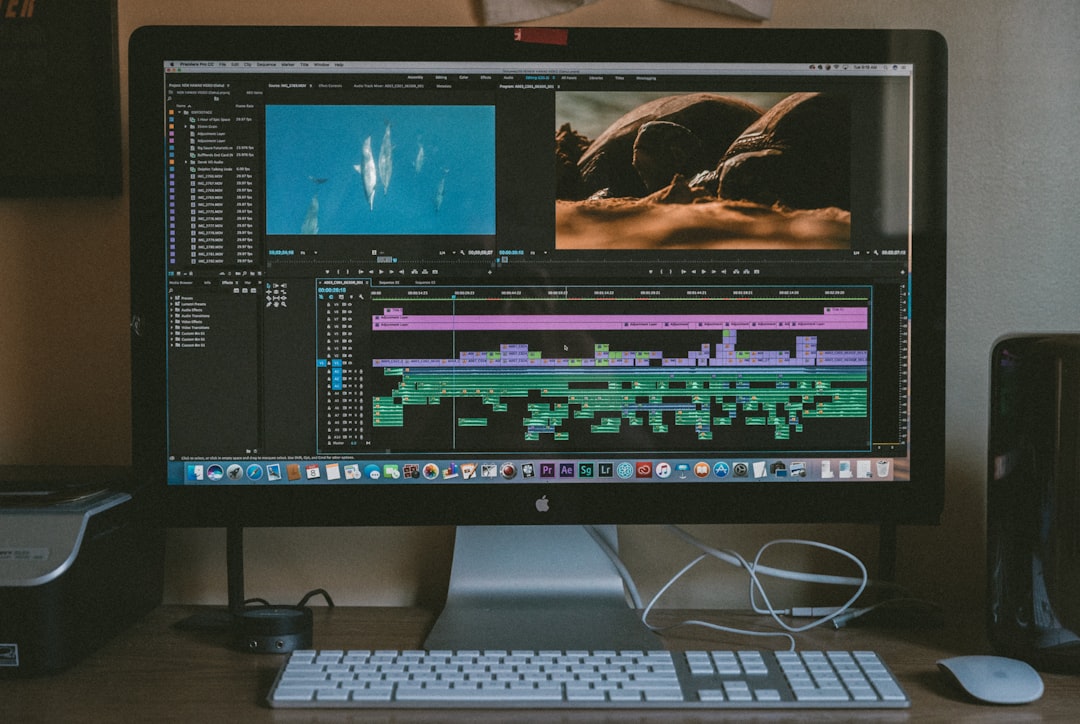
Pair the screenshot with callout labels, but keep them brief. Labels such as “Review before deleting,” “Sort by file size,” or “Monitor storage trends” can explain the interface without overwhelming the viewer.
Use Professional Calls to Action
The call to action should match the seriousness of the product. For Mac utilities, users may hesitate before installing because they want to know the software is safe and useful. A pushy CTA can reduce trust. A calm, direct CTA is usually better.
Effective CTA examples include:
- “Download the free trial”
- “Scan your Mac today”
- “Review your storage in minutes”
- “Start with a secure system check”
- “Try the toolkit before you upgrade”
If the flyer is printed, include a QR code that leads to a dedicated landing page. The landing page should match the flyer’s promise exactly. If the flyer promotes storage cleanup, the page should not open with unrelated features. Consistency increases conversion and trust.
Adapt Flyers for Different Marketing Channels
A flyer does not have to be limited to printing. The same core concept can be adapted for digital ads, email attachments, app launch announcements, trade show handouts, partner promotions, and social media posts. However, each format requires small adjustments.
- Printed flyer: Use high contrast, a QR code, and concise text that is readable at arm’s length.
- Email flyer: Keep the file size manageable and place the CTA near the top and bottom.
- Social media version: Use a simplified headline, one main visual, and one strong benefit.
- Trade show handout: Add pricing tiers, support information, or a limited time trial code.
- Website download sheet: Include more technical details, compatibility notes, and support links.
Maintaining the same visual identity across these versions helps users recognize the app repeatedly, which supports credibility over time.
Avoid Common Flyer Mistakes
Several mistakes can undermine an otherwise strong Mac utility flyer. The first is overloading the design with technical claims. Users need confidence, but they also need simplicity. The second is making broad promises such as “Make any Mac like new.” Such claims sound unreliable and may create unrealistic expectations.
Another mistake is failing to explain what happens before changes are made. For apps that delete files, modify startup items, or manage privacy settings, users want reassurance that they remain in control. Phrases like “Review results before applying changes” or “You choose what to remove” can significantly improve trust.
Also avoid using generic stock imagery unrelated to Mac workflows. A random person smiling at a laptop is less effective than a clear interface preview, organized file structure, or visual storage report.
Final Recommendations
The best flyer ideas for Mac toolkits and utility apps are built on clarity, restraint, and evidence. Use the flyer to make one strong promise, support it with practical features, and reinforce it with trust signals. Let the design feel as polished and dependable as the software itself.
Before finalizing the flyer, review it from the user’s point of view. Can they understand the app in ten seconds? Do they know whether it is compatible with their Mac? Do they feel safe installing it? Is the next step obvious? If the answer to these questions is yes, your flyer is positioned to do more than attract attention. It can build confidence, generate qualified interest, and help users see your Mac utility app as a serious solution to real everyday problems.