
When a laptop is “not opening,” the problem usually falls into one of two categories: it is either not receiving power, or it is powering on but not showing anything on the display. A laptop owner may press the power button and see no lights, hear no fan, or notice a blank screen even though the machine appears to be running. Understanding the difference is the quickest way to avoid unnecessary repairs and identify whether the issue is related to the charger, battery, screen, memory, or internal hardware.
TLDR: If a laptop is not opening, the first step is to check whether it has power: charger, wall socket, battery, and power button response. If lights or fan noise appear but the screen remains black, the issue may be the display, brightness, RAM, external monitor settings, or graphics hardware. A hard reset, charger test, external monitor test, and RAM reseat often solve common cases. If there is burning smell, liquid damage, repeated shutdowns, or no response after basic checks, professional repair is recommended.
Contents
What “Laptop Not Opening” Usually Means
The phrase laptop not opening can describe several different situations. In some cases, the laptop does not turn on at all. In others, it turns on but the operating system does not load. Sometimes, the screen stays black even though the keyboard lights, charging indicator, or fan are active.
For troubleshooting, the issue should be separated into three basic possibilities:
- No power: No lights, no fan, no charging indicator, and no sound.
- Power but no display: Lights or fan are active, but the screen remains black.
- Startup failure: The laptop logo appears, but Windows, macOS, or Linux does not open properly.
This article focuses mainly on power and display fixes, because those are the most common reasons a laptop appears completely dead.

First Check: Is the Laptop Getting Power?
If the laptop shows no sign of life, the first suspect is the power source. A faulty charger, damaged cable, loose charging port, dead wall socket, or drained battery can all prevent the laptop from starting.
1. Check the Wall Socket and Power Strip
The laptop owner should verify that the wall outlet is working. A simple way is to plug in another device, such as a phone charger or lamp. If a power strip is being used, it should be switched on and tested as well. Sometimes the issue is not the laptop at all, but a failed extension cable or tripped switch.
2. Inspect the Charger and Cable
The charger should be checked for physical damage. Bent pins, exposed wires, unusual heat, or a burning smell are warning signs. The charging brick may also have a small indicator light. If that light does not turn on when plugged into the wall, the charger could be defective.
Using the wrong charger can also prevent startup. Many laptops require a specific wattage. A low-power charger may keep the battery from charging or may fail to power the laptop under load. The correct adapter should match the laptop model’s voltage and wattage requirements.
3. Look for Charging Lights
Most laptops have a charging indicator near the charging port, keyboard, or side edge. If the light turns on when the charger is connected, the laptop is receiving some power. If there is no light, the issue could be the charger, battery, charging port, or motherboard.
Perform a Hard Reset
A hard reset can clear stored electrical charge and reset temporary power faults. This is one of the safest and most useful first steps when a laptop will not open.
- Turn the laptop off completely if it is partially on.
- Disconnect the charger.
- Remove external devices such as USB drives, external keyboards, mice, and monitors.
- If the battery is removable, take it out.
- Press and hold the power button for 20 to 30 seconds.
- Reconnect the charger only, without the battery if it is removable.
- Press the power button again.
If the laptop starts after this process, the issue may have been a temporary electrical lockup. If it starts only when the battery is removed, the battery may be faulty or deeply discharged.
Battery Problems That Stop a Laptop from Opening
A completely drained or failed battery can make a laptop look dead. Some laptops will still turn on with the charger connected, while others may not start if the battery is shorted or damaged.
Common battery-related signs include:
- The laptop turns on only when plugged in.
- The charging light blinks in an unusual pattern.
- The battery percentage stays at 0% or does not increase.
- The laptop shuts down immediately after unplugging.
- The bottom of the laptop is swollen or the touchpad is lifting.
A swollen battery is a serious safety concern. The laptop should not be forced closed, pressed, or charged further. A technician should replace the battery safely.
Power Button and Charging Port Issues
If the charger and battery appear normal, the problem may be the power button or charging port. A damaged power button may not send the startup signal to the motherboard. A loose charging port may connect and disconnect constantly, preventing the battery from charging.
Signs of a charging port problem include wiggling needed to charge, intermittent charging lights, sparks, or the charger plug feeling loose. These issues usually require repair because the port may need replacement or soldering.
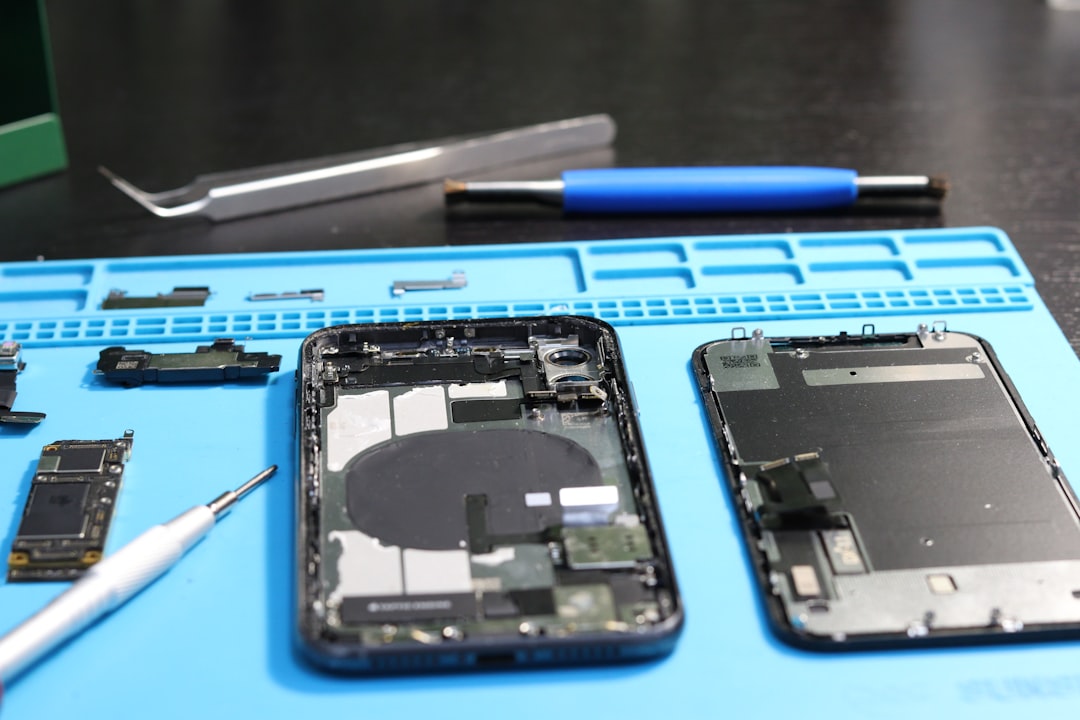
If the Laptop Turns On but the Screen Is Black
A black screen does not always mean the laptop is dead. If the user hears fan noise, sees keyboard backlight, or notices power LEDs, the laptop may be running with a display problem.
1. Increase Brightness
It may sound simple, but brightness can be set to the lowest level. The laptop owner should use the brightness function keys to increase screen brightness. On many laptops, these keys are located on the top row and marked with a sun icon.
2. Check for External Display Mode
Sometimes a laptop sends video output to an external monitor instead of its own screen. Pressing the display toggle key combination may restore the internal display. On Windows laptops, this is often Windows key + P, followed by selecting the duplicate or PC screen option.
3. Test with an External Monitor
Connecting the laptop to a monitor or TV using HDMI, USB C, or DisplayPort can help identify the issue. If the external screen works, the laptop itself is running, and the problem may involve the built-in screen, display cable, backlight, or hinge area.
If neither the internal screen nor an external monitor shows anything, the issue may be RAM, graphics hardware, BIOS corruption, or motherboard failure.
RAM Problems Can Cause a Blank Screen
Faulty or poorly seated RAM is a common cause of a laptop powering on with no display. When the memory cannot initialize, the laptop may show a black screen, blinking lights, or repeated restarts.
For laptops with accessible RAM, a technician or experienced user may reseat the memory module. This involves powering off the laptop, disconnecting power, opening the memory compartment, removing the RAM, and reinstalling it firmly. If there are two RAM sticks, testing one at a time can identify a failed module.
However, many modern laptops have soldered memory that cannot be removed. In those cases, RAM-related problems require professional diagnosis.
Listen for Beeps and Watch Light Patterns
Many laptops use beep codes or blinking LED patterns to report hardware problems. For example, a repeated blinking Caps Lock key or power light may indicate memory failure, BIOS corruption, or display hardware trouble. The exact meaning depends on the laptop brand and model.
The laptop owner should note the pattern carefully: how many blinks occur, whether they are long or short, and whether the pattern repeats. This information can help a repair technician or support page identify the failing component.
Operating System Startup Problems
If the laptop logo appears but the system does not continue loading, the laptop is opening at the hardware level but failing during startup. The cause may be corrupted system files, a failed storage drive, a recent update, or malware.
Typical signs include:
- The laptop stays on the manufacturer logo.
- A spinning loading circle never finishes.
- A blue screen or recovery screen appears.
- The laptop restarts again and again.
- A message says no boot device is found.
In this situation, power and display are likely working. The next step would be startup repair, safe mode, drive health testing, or operating system recovery. Important files should be backed up before reinstalling the system if possible.

Overheating and Internal Protection
Some laptops refuse to start if internal temperatures are unsafe or if cooling components have failed. Dust buildup, blocked vents, dried thermal paste, or a faulty fan can trigger automatic shutdowns. If the laptop turned off during heavy use and then would not open immediately, it may need time to cool.
The laptop should be placed on a hard, flat surface with vents unobstructed. If it starts after cooling but shuts down again, cleaning and cooling system service may be needed.
Remove External Devices
External accessories can sometimes prevent startup. A faulty USB device, docking station, memory card, external drive, or printer connection may interfere with booting. The laptop should be tested with only the charger connected. Once it starts normally, devices can be reconnected one at a time to find the cause.
When Professional Repair Is Needed
Basic troubleshooting can solve many laptop power and display problems, but some signs point to serious hardware failure. Professional help is recommended when there is:
- No power after testing another charger and outlet.
- Liquid damage or corrosion near the keyboard or ports.
- Burning smell, smoke, sparks, or extreme heat.
- Swollen battery or a lifted touchpad.
- Broken screen, damaged hinge, or flickering backlight.
- Repeated shutdowns during startup.
- Important data stored on the device that must not be lost.
A repair technician can test the charger, battery, charging port, motherboard, RAM, storage drive, and display assembly using proper tools. If the laptop is under warranty, opening it at home may void coverage, so official service is often the better option.
Preventing Future Power and Display Problems
Prevention is easier than repair. A laptop owner can reduce future startup issues by using the correct charger, avoiding cheap adapters, keeping vents clean, protecting the device from liquid, and shutting it down properly during updates. The laptop should not be stored with a fully drained battery for long periods, because deep discharge can damage battery cells.
Regular backups are equally important. Even when the laptop fails to open, the data may still be recoverable, but backups prevent panic and expensive recovery services.
Conclusion
When a laptop is not opening, the best approach is to determine whether the issue is power-related or display-related. No lights or sounds usually point toward the charger, battery, charging port, or motherboard. Lights and fan noise with a black screen usually point toward brightness settings, external display mode, RAM, screen hardware, or graphics problems.
Simple steps such as testing the charger, performing a hard reset, removing accessories, checking display output, and observing light patterns can solve or identify many common problems. If the laptop still does not respond, professional diagnosis is the safest path, especially when there is possible battery, liquid, or motherboard damage.
FAQ
Why is the laptop not turning on even when plugged in?
The cause may be a faulty charger, dead wall outlet, damaged charging port, failed battery, or motherboard issue. Testing another compatible charger and outlet can help narrow it down.
Why does the laptop power light turn on but the screen stays black?
This often points to a display problem, low brightness, external monitor mode, loose display cable, faulty RAM, or graphics hardware failure.
Can a dead battery stop a laptop from opening?
Yes. Some laptops will not start with a failed or shorted battery. If the battery is removable, testing the laptop with only the charger connected may help identify the problem.
What should be tried first when a laptop does not open?
The first steps are to check the outlet, inspect the charger, look for charging lights, remove external devices, and perform a hard reset by holding the power button for 20 to 30 seconds.
Is a black screen always a serious problem?
No. A black screen can be caused by brightness settings, sleep mode, or external display selection. However, if the laptop shows no image on an external monitor either, the issue may be more serious.
When should the laptop be taken to a technician?
Professional repair is recommended if there is no power after basic checks, signs of liquid damage, a swollen battery, burning smell, broken screen, or important data that must be protected.