
DaVinci Resolve is great. It edits video. It grades color. It handles sound. It also sometimes looks you in the eye and says, “Auto Sync Failed.” Rude. Very rude. But do not panic. This error is common, and most of the time, it is easy to fix.
TLDR: Auto Sync usually fails because Resolve cannot match the camera audio with the external audio. Check that both clips have usable sound, the same sample rate, and enough overlap. Try syncing by waveform, then try timecode if you have it. If nothing works, convert your audio to clean WAV files and sync the clips manually.
Contents
What Does “Auto Sync Failed” Mean?
The Auto Sync Failed error means DaVinci Resolve tried to match your video and audio, but it could not find a clear match.
Think of Resolve as a detective. It listens to the scratch audio from your camera. Then it listens to the nice audio from your microphone or recorder. It tries to find the same sounds in both files.
If the sounds match, great. Your clips sync.
If the sounds are too quiet, too noisy, missing, or confusing, Resolve gives up. Then you get the error.
This is not always your fault. Sometimes the audio file is weird. Sometimes the camera audio is bad. Sometimes the sample rate is different. Sometimes Resolve is just having a dramatic day.

Common Reasons Auto Sync Fails
Before fixing the error, it helps to know why it happens. Here are the usual troublemakers.
- No camera audio: Resolve needs scratch audio to compare.
- Very noisy audio: Wind, traffic, fans, and crowds can confuse the sync.
- Audio is too quiet: If Resolve cannot “hear” the waveform, it cannot match it.
- Wrong clips selected: Yes, it happens. We have all done it.
- No overlap: The video and audio must contain the same moment.
- Different sample rates: One file may be 44.1 kHz. Another may be 48 kHz.
- Compressed audio: MP3 and some camera files can cause trouble.
- Clips are too short: Resolve needs enough audio to compare.
- Timecode does not match: If using timecode, it must be correct.
Fix 1: Make Sure You Are Using the Right Sync Method
DaVinci Resolve gives you more than one way to sync audio. The most common method is sync by waveform.
To try it:
- Go to the Media page or Edit page.
- Select your video clip.
- Select the matching audio clip.
- Right click one of the selected clips.
- Choose Auto Sync Audio.
- Pick Based on Waveform.
If that fails, try another option.
- Based on Timecode: Use this if your camera and audio recorder were jam synced.
- Based on Timecode and Append Tracks: This keeps the original camera audio and adds the external audio.
- Based on Waveform and Append Tracks: This is great when you want to keep all audio tracks.
Quick tip: If you are not sure which one to pick, start with Based on Waveform and Append Tracks. It is usually the safest choice.
Fix 2: Check If the Camera Audio Exists
This sounds obvious. But it is the big one.
Waveform sync needs audio from the video file. If your camera recorded silent video, Resolve has nothing to compare. It is like asking someone to match two songs when one song is just empty air.
To check this:
- Drag the video clip into a timeline.
- Look for an audio waveform under the video.
- Play the clip.
- Listen for sound.
If there is no sound, waveform sync will not work. You will need to use timecode, a clap, or manual sync.
If the sound is there but tiny, you may need to increase the clip volume first. Resolve can miss very quiet waveforms.
Fix 3: Use a Clap or Sharp Sound
A clap is magic. It creates a big spike in the audio waveform. Resolve loves spikes. Editors love spikes. Everyone loves spikes, except maybe balloons.
If your clip has a clap, slate, snap, or loud click, syncing becomes much easier.
To manual sync with a clap:
- Put the video clip on the timeline.
- Put the external audio clip below it.
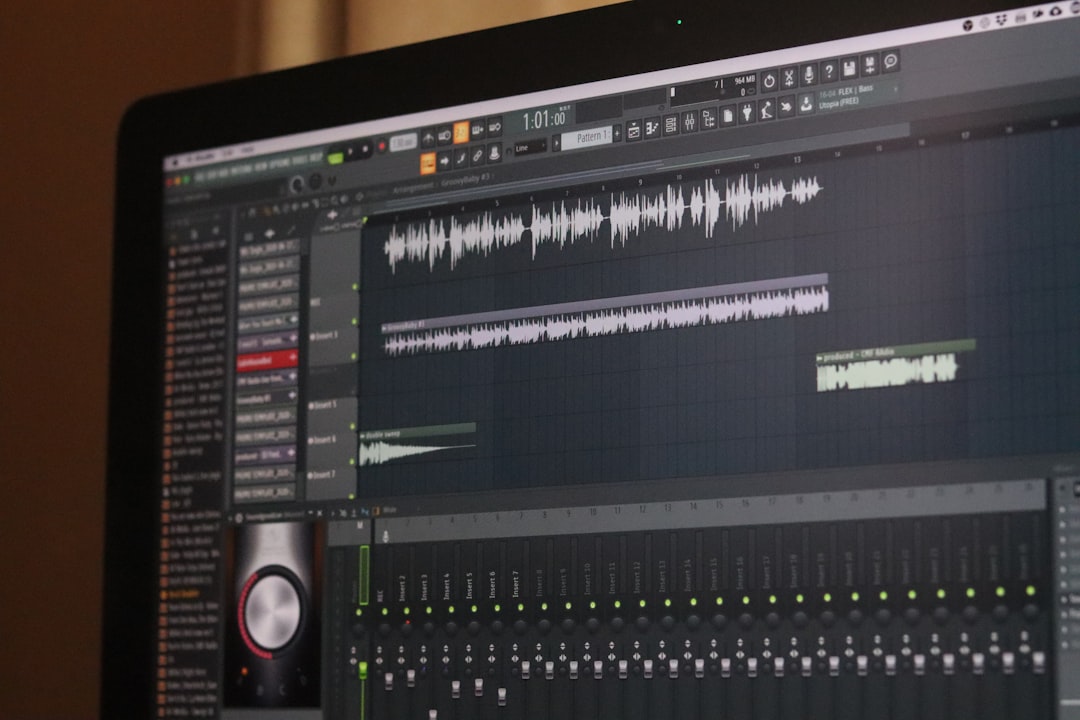
- Zoom into the waveform.
- Find the clap spike in the camera audio.
- Find the same spike in the external audio.
- Move the audio until both spikes line up.
- Play it back and check the lips.
If lips match words, you win. Do a small victory dance. Keep it tasteful.
Fix 4: Convert Audio to WAV
DaVinci Resolve works best with clean, simple audio files. A WAV file is usually the best choice.
If your external audio is MP3, AAC, M4A, or from a phone app, convert it to WAV. This can remove weird decoding issues.
Use these settings if possible:
- Format: WAV
- Sample rate: 48 kHz
- Bit depth: 24 bit or 16 bit
- Channels: Mono or stereo, depending on your recording
After converting, import the new WAV file into Resolve. Then try Auto Sync again.
This simple step fixes a surprising number of problems. It is the editing version of turning it off and on again. Not fancy. Often effective.
Fix 5: Match the Sample Rate
Video projects usually use 48 kHz audio. Music files often use 44.1 kHz. If your camera audio is 48 kHz and your external audio is 44.1 kHz, Resolve may struggle.
It may still sync. But it may drift later. That means the audio starts fine, then slowly goes out of sync. This is very annoying. It is like a tiny gremlin pushing your audio a little more every minute.
To avoid this, use 48 kHz for all production audio.
You can check sample rates inside Resolve:
- Open the Media Pool.
- Right click a clip.
- Choose Clip Attributes.
- Look at the audio information.
If needed, convert the audio to 48 kHz WAV and try again.
Fix 6: Trim the Clips to the Same Area
Sometimes clips are too long. Resolve has to search through a giant pile of sound. If the matching part is small, it may fail.
You can help it.
Create shorter versions of the clips that contain the same section. For example, if the take starts around the clap, trim both clips near that point. Then try sync again.
You do not need to permanently cut anything. Just make subclips or place them in a timeline. The goal is to help Resolve focus.
Less haystack. Easier needle.
Fix 7: Remove Bad or Extra Audio Tracks
Some video files have several audio tracks. One may be silent. One may be noisy. One may have a camera mic. Another may have nothing useful at all.
Resolve might listen to the wrong track. That can cause sync failure.
Check the audio tracks:
- Right click the clip in the Media Pool.
- Choose Clip Attributes.
- Go to the Audio tab.
- Disable empty or useless tracks.
- Keep the track with the best scratch audio.
Then try syncing again.
This is like telling Resolve, “Listen to this one, buddy.” Much better.
Fix 8: Use Timecode Sync If You Have It
If your camera and recorder were synced with timecode, use it. Timecode is the fancy grown up way to sync. It is clean. It is fast. It is elegant. It wears a tiny suit.
To sync by timecode:
- Select the matching video and audio clips.
- Right click.
- Choose Auto Sync Audio.
- Select Based on Timecode.
If this fails, check these things:
- The camera timecode is correct.
- The audio recorder timecode is correct.
- The clips are from the same shoot day.
- The frame rate matches the project.
- The recorder did not use free run while the camera used record run.
Timecode is powerful, but only if it was set up correctly during filming.
Fix 9: Update DaVinci Resolve
Sometimes the problem is not your media. It may be Resolve itself.
Older versions can have bugs. Newer versions may improve audio handling. So check for updates.
Before updating, make a backup of your project database. This is important. Very important. Do not skip it. Future you will send present you a thank you card.
After updating, restart your computer. Then open the project and try syncing again.
Fix 10: Reset the Audio Waveform Cache
Resolve creates waveform displays for your clips. Sometimes these waveform files can act strange. If the waveform display is wrong or missing, syncing may fail.
You can try clearing cache files.
- Go to Playback.
- Choose Delete Render Cache.
- Select All.
You can also restart Resolve and let it rebuild waveforms. If the media was imported while on a slow drive, move it to a faster drive and relink it.
External drives can be sneaky. A slow cable can make everything feel cursed.
Fix 11: Try Manual Sync as a Backup Plan
Auto sync is nice. But manual sync is the superhero cape in your closet.
Use manual sync when:
- There is no camera audio.
- The audio is too noisy.
- The clip is too short.
- Timecode is wrong.
- Resolve keeps failing for no clear reason.
Line up the waveform spikes. Then play the clip. Watch the mouth. Listen for hard sounds like P, B, and T. These sounds make sync errors easy to spot.
If the audio is a little early or late, nudge it by one frame at a time. Keep going until it feels right.
Fix 12: Create a Synced Clip the Right Way
Once your audio is synced, you want to keep it organized.
You can link the clips in the timeline, or you can create a new synced clip. If you are working with lots of takes, synced clips are cleaner.
After successful auto sync, Resolve can attach the external audio to the video clip in the Media Pool. Then you can edit with it like normal.
If you synced manually in a timeline, you can select the video and audio, right click, and use options like Link Clips or create a compound clip. Use what fits your workflow.
For dialogue projects, name your synced clips clearly. Try names like:
- Scene 01 Take 03 Synced
- Interview A Cam Synced
- Wedding Vows Clean Audio
Your future editing brain will be very happy.
Best Recording Tips to Avoid This Error Later
The best fix is to avoid the problem during recording. I know. That sounds like advice from a wise turtle. But it is true.
- Always record camera scratch audio. Even bad audio is better than no audio.
- Use a clap at the start of each take. A slate is even better.
- Set all devices to 48 kHz. This helps prevent drift.
- Keep microphones close. Cleaner audio means easier sync.
- Avoid loud fans and wind. Noise makes waveforms messy.
- Use timecode for big shoots. It saves tons of time.
- Label files on set. Boring? Yes. Useful? Very.
Quick Troubleshooting Checklist
If you are in a hurry, run through this list:
- Do both clips have audio?
- Did you select the correct video and audio clips?
- Do the clips overlap in time?
- Is the camera audio loud enough?
- Is the external audio a WAV file?
- Are both files using 48 kHz?
- Can you see a clap or spike in both waveforms?
- Did you try Append Tracks?
- Did you disable bad audio tracks?
- Did you try manual sync?
Final Thoughts
The Auto Sync Failed error in DaVinci Resolve is annoying, but it is not a disaster. Most of the time, Resolve just cannot find a clear audio match. Give it better clues, and it will usually behave.
Start with the simple fixes. Check the audio. Use waveform sync. Convert to WAV. Match the sample rate. Trim the clips. If all else fails, sync by hand with a clap or waveform spike.
Editing is part art, part science, and part politely arguing with software. Stay calm. Stay organized. And remember, every sync problem has a solution. Even if that solution involves zooming into a waveform until your eyes feel like raisins.