
Few things are more frustrating for a video editor than finishing hours of work in DaVinci Resolve only to discover that your project hasn’t saved properly—or worse, it won’t save at all. Whether you’re cutting a YouTube video, editing a client commercial, or grading a short film, project-saving issues can bring your workflow to a sudden halt. The good news? Most saving problems in DaVinci Resolve are common, predictable, and fixable with the right approach.
TLDR: If your DaVinci Resolve projects are not saving, the issue is usually tied to permissions, disk space, database problems, or project server errors. Start by checking storage availability, ensuring folder access permissions are correct, and verifying your project database integrity. In many cases, switching databases or enabling Live Save can immediately prevent further losses. A structured troubleshooting approach can save both your edits and your sanity.
Contents
Why DaVinci Resolve Might Not Be Saving Projects
Before diving into fixes, it helps to understand what may be going wrong. DaVinci Resolve stores projects inside project libraries (databases). If something interrupts access to that database, saving can fail silently or trigger error messages.
Here are the most common causes:
- Insufficient disk space
- Corrupted project database
- Permission restrictions
- External drive connection issues
- Software crashes or outdated version
- Network cloud or collaboration errors
Let’s break these down and explore how to solve them efficiently.
1. Not Enough Disk Space
This may sound obvious, but it’s one of the most common reasons projects fail to save. DaVinci Resolve constantly writes cache files, optimized media, render files, and backups. If your drive is nearing capacity, the software may struggle to update your project database.

How to Fix It
- Check available free space on your system and media drives.
- Delete unused render cache files in Playback > Delete Render Cache.
- Clear optimized media you no longer need.
- Move old projects and archives to an external drive.
As a rule of thumb, keep at least 15–20% of your drive free for stable performance.
2. Project Library (Database) Corruption
DaVinci Resolve uses PostgreSQL or Disk Databases to manage projects. If the database becomes corrupted—due to improper shutdowns, system crashes, or power loss—you may notice saving errors or projects that fail to open.
Warning signs include:
- Projects not opening properly
- Frequent crashes during save
- Error messages about database access
How to Fix It
- Open the Project Manager.
- Create a new project library.
- Try exporting and importing your affected project into the new database.
If you have backups enabled (and you should), navigate to:
DaVinci Resolve > Preferences > User > Project Save and Load
Restore from the latest automatic backup.
3. Folder Permission Issues (Especially on macOS)
Operating systems sometimes block apps from writing to certain directories. This frequently happens after system updates or when moving databases between drives.
If Resolve doesn’t have full read/write permission, it simply won’t save properly.
How to Check Permissions
- Locate your database folder (commonly in Documents or a custom directory).
- Right-click and open Properties (Windows) or Get Info (Mac).
- Ensure your user account has Read and Write access.
On macOS, also check:
- System Settings > Privacy & Security > Full Disk Access
- Add DaVinci Resolve if it’s missing.
Restart the application after adjusting permissions.
4. External Drive Problems
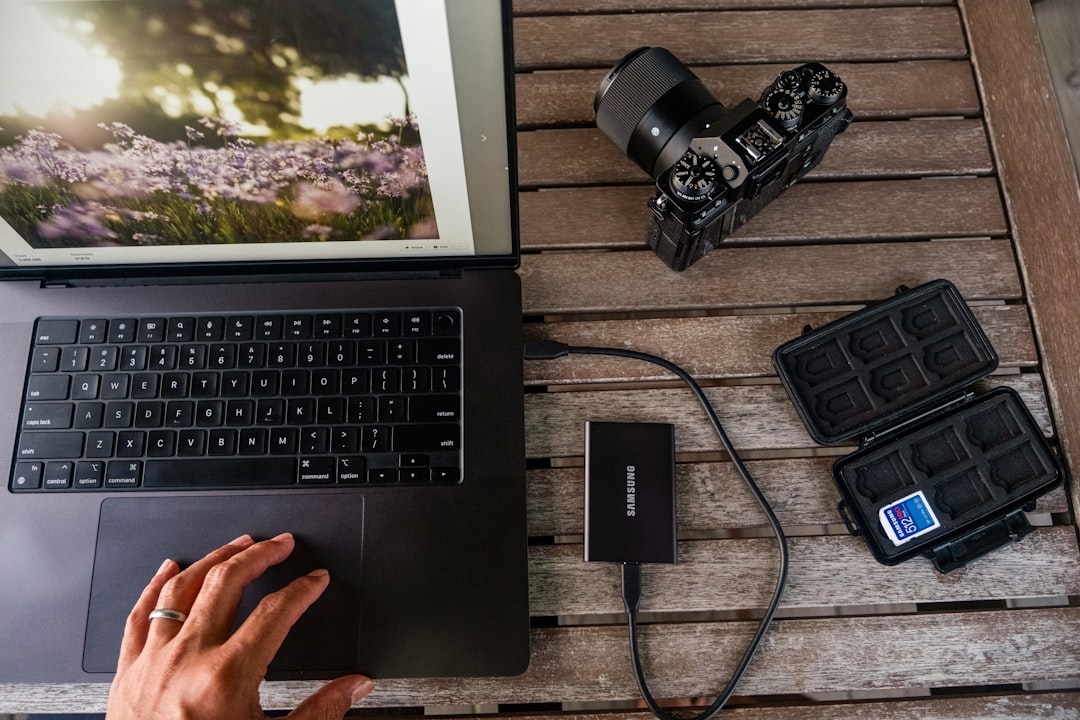
Many editors store project libraries on external SSDs or HDDs. If the connection drops, power fluctuates, or the drive momentarily disconnects, saving can fail.
This is especially common with:
- USB hubs
- Loose cables
- ExFAT-formatted drives
Solutions
- Avoid using USB hubs for project storage.
- Switch to high-quality USB-C or Thunderbolt cables.
- Format drives to native systems (NTFS for Windows, APFS for Mac).
- Consider storing databases on internal drives instead.
Even a brief disconnect can interrupt write processes, which may corrupt ongoing saves.
5. Auto Save and Live Save Are Disabled
One of the most preventable issues is simply not having automatic backups enabled. If Live Save is turned off, you rely entirely on manual saves.
How to Enable It
- Go to DaVinci Resolve > Preferences.
- Select the User tab.
- Open Project Save and Load.
- Enable Live Save.
- Enable Project Backups (set interval to 5–10 minutes).
With Live Save enabled, changes are continuously written to the database. Project backups create restorable snapshots.
6. Outdated Software Version
If you’re running an older version of DaVinci Resolve, compatibility bugs may interfere with saving—especially after OS updates.
Blackmagic Design regularly releases stability fixes. If you notice save issues after updating your operating system, updating Resolve is often the fix.
Solution
- Download the latest stable version from the official site.
- Backup your project database before installing.
- After updating, launch and allow database upgrades if prompted.
Never skip database backups before major version changes.
7. Collaboration and Cloud Project Errors
If you’re using Blackmagic Cloud or a shared PostgreSQL server, saving depends on stable network access. If the server connection drops or synchronization fails, Resolve may not save properly.

Common symptoms include:
- Slow save performance
- Projects locking unexpectedly
- Sync conflict warnings
Fixes
- Check internet stability.
- Verify login credentials.
- Restart PostgreSQL service.
- Temporarily switch to a local database for urgent work.
If collaboration tools aren’t essential for your workflow, a local disk database may be more stable.
8. Crashes During Heavy Effects or Color Grading
Sometimes Resolve appears not to save—but in reality, it crashes before completing the save process. Intensive Fusion effects, high-resolution footage, and GPU overload can cause instability during save operations.
How to Reduce Crashes
- Generate optimized media for 4K/6K footage.
- Lower timeline resolution during editing.
- Update GPU drivers.
- Reduce render cache strain.
Heavy GPU loads increase the chance that saving operations will be interrupted.
9. How to Prevent Project Loss in the Future
Fixes matter—but prevention matters more. Professional editors treat project protection as a core workflow habit.
Best Practices
- Enable Live Save and automatic backups.
- Export DRP project backups daily.
- Use reliable internal SSDs for databases.
- Maintain at least 20% free disk space.
- Back up databases to external drives weekly.
- Avoid force-quitting the application.
You can manually export a project file anytime:
File > Export Project
This creates a lightweight DRP file that acts as insurance for your timeline structure.
When to Reinstall DaVinci Resolve
If none of the above solutions work, a clean reinstall may help. However, this should be your last resort.
Before uninstalling:
- Export all projects as DRP files.
- Backup your entire project library folder.
After reinstalling:
- Create a new database.
- Import projects into it.
In many reported cases, a fresh installation resolves abnormal save behavior caused by corrupted program files.
Final Thoughts
If your DaVinci Resolve projects aren’t saving, don’t panic. In most cases, the problem is tied to disk space, permissions, or database instability—not catastrophic project loss. By methodically checking storage, verifying permissions, enabling backups, and maintaining updated software, you can eliminate nearly every common saving issue.
Professional editing isn’t just about creativity—it’s also about protecting your work. A few proactive adjustments today can save you hours (or days) of frustration tomorrow. With the right safeguards in place, DaVinci Resolve becomes not just powerful—but dependable.