
Typography plays a powerful role in video editing. The right font can elevate a simple title into a cinematic statement, reinforce brand identity, and guide viewers’ attention with subtle visual cues. In DaVinci Resolve, adding and managing fonts is straightforward once you understand how the software interacts with your operating system and its own text tools. Whether you’re creating YouTube videos, client promos, or full-scale film graphics, mastering fonts will significantly improve the polish of your projects.
TLDR: Adding fonts to DaVinci Resolve usually means installing them on your computer, as the software pulls from your system’s font library. You can manage and customize fonts inside the Edit and Fusion pages, organize text styles with Power Bins, and troubleshoot missing fonts by checking your OS font manager. With proper organization and a few workflow tips, managing typography in Resolve becomes fast and efficient.
Contents
Understanding How DaVinci Resolve Uses Fonts
Before adding fonts, it’s important to understand how Resolve handles them. Unlike some design software that manages fonts internally, DaVinci Resolve primarily relies on fonts installed on your operating system (Windows or macOS). Once a font is installed system-wide, it becomes available in Resolve automatically after a restart.
There are three main areas in Resolve where fonts are commonly used:
- Edit Page – For basic titles and text overlays.
- Fusion Page – For advanced motion graphics and effects.
- Text+ Tool – A more powerful title generator inside both Edit and Fusion workflows.
The Text+ option is particularly important, as it gives you more control over kerning, tracking, shading, stroke, and layout compared to the basic Text generator.
How to Add Fonts to DaVinci Resolve
Because Resolve uses system fonts, adding new fonts is usually as simple as installing them on your computer.
For Windows Users
- Download your font file (typically .TTF or .OTF format).
- Right-click the font file.
- Select Install or Install for All Users.
- Restart DaVinci Resolve if it’s open.
The newly installed font should now appear in the font dropdown menu inside the Inspector panel.
For macOS Users
- Download the font file.
- Double-click the file to open it in Font Book.
- Click Install Font.
- Restart DaVinci Resolve.
Once reopened, Resolve will automatically detect the new font and make it available in your font list.
Using Fonts in the Edit Page
The Edit page is where most editors start. To add text:
- Open the Effects Library.
- Go to Titles.
- Drag either Text or Text+ onto your timeline.
- Select the title clip and open the Inspector.
- Choose your font from the dropdown menu.
From here, you can adjust:
- Font size
- Tracking (space between letters)
- Line spacing
- Color and opacity
- Stroke and drop shadow
For professional results, consider pairing fonts carefully. Use a bold display font for headings and a clean sans-serif for subtitles. Avoid using too many fonts in one project, as it can quickly look unprofessional.
Advanced Font Control with Text+
The Text+ feature provides much more granular control than the basic Text tool. When you select Text+ and open the Inspector, you’ll notice additional tabs and controls for styling and layout.
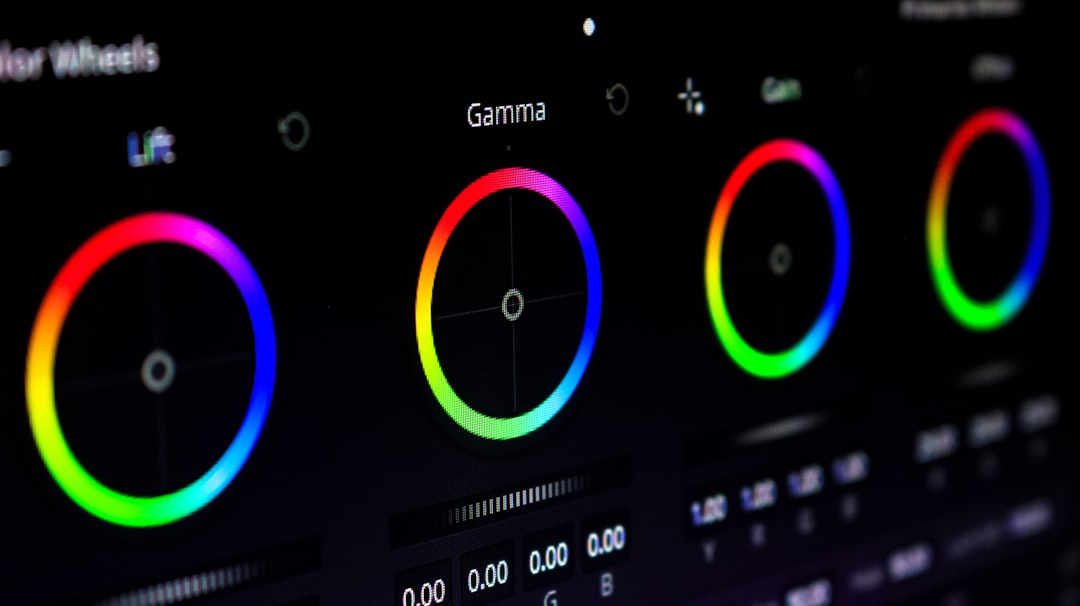
With Text+, you can:
- Modify character-level styling
- Animate tracking and kerning
- Add shading elements
- Control individual word styling
- Use keyframes for animated typography
If you’re working on motion graphics, Text+ integrates seamlessly with the Fusion page, giving you node-based control over your typography. This opens the door to advanced effects like 3D text, particle interactions, and cinematic reveals.
Managing Large Font Libraries
If you work in video production regularly, your font library can quickly grow out of control. Hundreds—or even thousands—of fonts can slow down selection and make it harder to find what you need.
Here are some practical management tips:
1. Organize Fonts at the System Level
Use your operating system’s font manager to disable fonts you rarely use. On macOS, Font Book allows you to create collections. On Windows, you can preview and uninstall unused fonts directly from the Fonts settings panel.
2. Create Project-Specific Font Sets
For branding consistency, choose 2–4 fonts per project and stick with them. Document your selections in your project notes. This ensures all titles, lower thirds, and graphics remain cohesive.
3. Use Power Bins for Title Templates
Power Bins in DaVinci Resolve let you store reusable assets across projects. Save customized title presets with specific fonts and styling, so you don’t have to rebuild them each time.
- Create your styled Text+ title.
- Right-click it in the Media Pool.
- Add it to a Power Bin.
This workflow dramatically improves efficiency for editors handling recurring clients or series content.
Troubleshooting Missing Fonts
Sometimes you might open a project and see a warning about missing fonts. This usually happens when:
- The project was created on another computer.
- The font was uninstalled.
- The font is not compatible with your OS.
To fix missing fonts:
- Identify the missing font name in the Inspector.
- Install the required font on your system.
- Restart Resolve.
If you can’t obtain the original font, substitute it with a similar style. Try matching:
- Serif vs. sans-serif category
- Weight (light, regular, bold)
- Proportions and spacing
Keep in mind that changing a font may slightly affect layout and animations, so review positioning carefully after substitution.
Best Practices for Professional Typography
Great typography goes beyond just installing fonts. It requires thoughtful usage.
Maintain Readability
Avoid overly decorative fonts for long blocks of text. Script fonts work best for short accents or logos, not subtitles.
Consider Screen Resolution
Thin fonts may appear elegant on a retina display but can break apart on lower-resolution screens. Always preview your video on multiple devices.
Use Contrast Wisely
Ensure sufficient contrast between text and background. Add subtle shadows or semi-transparent background boxes for clarity when needed.
Don’t Over-Animate
Just because Text+ allows complex animation doesn’t mean every title should bounce, spin, and glow. Subtle movement tends to look more professional and cinematic.
Fonts and Performance Considerations
In most cases, fonts won’t significantly impact performance. However, extremely complex Text+ animations combined with high-resolution timelines (4K or higher) can increase render times.
To optimize performance:
- Use optimized media when editing large projects.
- Cache Fusion effects if necessary.
- Render in Place for complex animated titles.
This ensures smooth playback during editing and faster final exports.
Building a Strong Font Toolkit
If you’re just starting your font collection, consider building a balanced toolkit that includes:
- A clean sans-serif (for modern projects)
- A classic serif (for corporate or documentary work)
- A bold display font (for thumbnails or dramatic titles)
- A subtle script font (for stylistic accents)
Over time, you’ll develop an instinct for which fonts suit different moods—corporate, cinematic, playful, futuristic, or minimalist.
Final Thoughts
Adding and managing fonts in DaVinci Resolve is less about technical complexity and more about workflow and organization. Once you understand that Resolve relies on system-installed fonts, the process becomes simple: install, restart, and create. The real magic happens when you combine thoughtful typography with the powerful tools inside Text+ and Fusion.
By organizing your font library, creating reusable templates, and following professional design principles, you’ll transform ordinary titles into compelling visual elements that strengthen your storytelling. In video editing, details matter—and the right font can make all the difference.