

When managing a Fortinet firewall, most administrators focus on policies, VPNs, and threat protection. However, there’s a small but critical setting that often goes overlooked: the console port baud rate. Whether you’re performing initial setup, troubleshooting boot issues, or recovering a device, understanding the Fortinet firewall baud rate can save you valuable time and prevent frustrating connection problems.
TLDR: The default baud rate for most Fortinet firewalls is 9600 bps, which is used for console access through the serial port. If your terminal connection displays garbled text, mismatched baud rate settings are usually the cause. Adjusting the baud rate is simple through CLI commands, but consistency between your device and terminal emulator is essential. Knowing when and how to modify this setting can dramatically improve troubleshooting efficiency.
Contents
What Is a Baud Rate?
The baud rate refers to the speed of data transmission over a serial connection. In practical terms, it determines how fast bits are sent between your computer and the Fortinet firewall through the console port.
Measured in bits per second (bps), common baud rates include:
- 9600
- 19200
- 38400
- 57600
- 115200
If the baud rate configured on your terminal emulator (like PuTTY or Tera Term) does not match the firewall’s console baud rate, you’ll see distorted or unreadable characters on the screen.
Default Baud Rate on Fortinet Firewalls
For the vast majority of FortiGate models, the default baud rate is 9600 bps. This has been the long-standing standard for console communication across network devices.
Here are the typical default console settings:
- Baud rate: 9600
- Data bits: 8
- Parity: None
- Stop bits: 1
- Flow control: None
This configuration is often referred to as 9600 8N1.
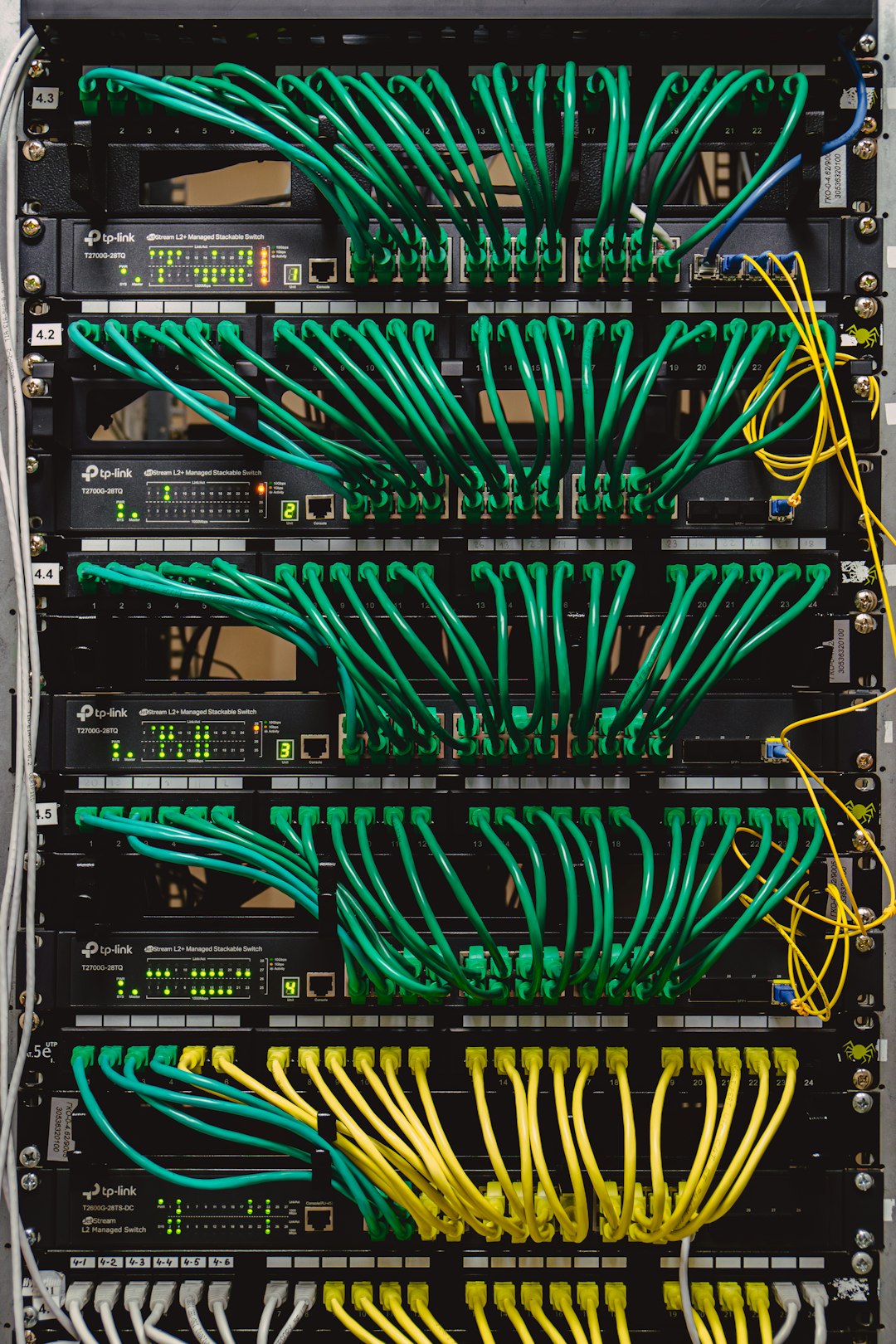
If you’re performing an initial device setup out of the box, start with these settings in your terminal client. In most deployments, you’ll never need to change them. However, there are specific cases where adjusting the baud rate becomes necessary.
When Would You Change the Baud Rate?
Even though 9600 is the default, some administrators prefer higher speeds such as 115200 bps for faster console responsiveness. Here are some common scenarios where changing the baud rate makes sense:
1. Faster Troubleshooting Sessions
Higher baud rates reduce delay when outputting large logs or debug information. When working with verbose crash reports or packet debug logs, a faster rate can noticeably speed things up.
2. High-Volume Debug Output
During deep troubleshooting sessions, particularly with:
- Kernel debug messages
- VPN diagnostics
- Routing protocol debugging
- System crash logs
A higher transmission rate can prevent bottlenecks.
3. Standardization Across Devices
In data centers where all network devices are standardized at 115200 bps, administrators might adjust FortiGate firewalls to match operational norms.
How to Check the Current Baud Rate
To verify the console baud rate from the CLI, use:
show system console
This command displays the currently configured speed parameter for the console interface.
You might see output similar to:
config system console
    set baudrate 9600
end
This confirms the active setting.
How to Change the Baud Rate
Changing the console baud rate on a Fortinet firewall is straightforward but must be done carefully to avoid losing visibility.
Step 1: Enter Console Configuration Mode
config system console
Step 2: Set the Desired Baud Rate
set baudrate 115200
Step 3: End and Save
end
Once you apply the change, your current console session may become unreadable immediately. Don’t panic — simply adjust your terminal emulator to the new baud rate.
Important Configuration Tips
Changing the baud rate is simple, but these best practices can prevent unnecessary frustration:
1. Always Confirm Before Disconnecting
Before closing your session, ensure you can reconnect successfully at the new rate. If you lose access and forget the configured value, troubleshooting becomes more complex.
2. Document the Change
Update internal documentation whenever altering console settings. Future administrators may assume the default is still 9600.
3. Match Terminal Settings Exactly
Besides baud rate, confirm:
- Parity is set to None
- Data bits are set to 8
- Stop bits are set to 1
- Flow control is disabled
4. Use Quality Serial Adapters
USB-to-serial adapters vary in reliability. Poor-quality chipsets can cause intermittent console drops, especially at higher baud rates like 115200.
Troubleshooting Garbled Console Output
If you connect to your Fortinet firewall and see scrambled characters like:
▒▒▒▓╣▒▓▒▓▒▒▒▒▓▒
This almost always indicates a baud rate mismatch.
How to Fix It
- Disconnect your terminal session.
- Reconnect using 9600 8N1 as your first attempt.
- If that fails, try 115200.
- Cycle through common baud rates if necessary.
In rare recovery situations, especially after firmware interventions, the baud rate might differ from previous configurations.
Console Port vs. SSH Access
It’s important not to confuse console baud rate with remote management speed.
- Console Port: Physical serial connection, affected by baud rate.
- SSH or HTTPS: Network-based access, not affected by baud rate settings.
Adjusting the console speed has no impact on:
- Firewall throughput
- VPN performance
- Web interface speed
- Network traffic handling
The console baud rate strictly affects serial communication performance.
Recovery Mode Considerations
During firmware recovery using TFTP or BIOS-level interaction, console output becomes critical. Some bootloaders default to higher speeds such as 115200 bps, even if the main configuration uses 9600.
If you cannot read boot messages:
- Switch to 115200 temporarily.
- Reboot the firewall.
- Observe the early boot output.
This can be particularly useful when diagnosing failed firmware upgrades.
Best Practices for Production Environments
For most production deployments, the safest approach is:
- Leave the default at 9600
- Only increase if operationally necessary
- Standardize across all managed devices
- Maintain updated documentation
The difference in responsiveness is noticeable but rarely mission-critical. Stability and predictability often outweigh marginal performance gains.
Is Higher Always Better?
Not necessarily.
While 115200 provides faster data transmission, it can also be more sensitive to:
- Low-quality serial cables
- Long cable runs
- Electromagnetic interference
In electrically noisy environments, 9600 may actually provide a more reliable console experience.
Final Thoughts
The Fortinet firewall baud rate may seem like a minor technical detail, but it plays an important role in device access and recovery. For day-to-day work, the default 9600 8N1 configuration remains dependable and universally supported. However, advanced administrators should understand how to verify and adjust the setting when troubleshooting demands it.
By knowing the default settings, recognizing symptoms of mismatched speeds, and applying proper configuration steps, you ensure uninterrupted access to one of your network’s most critical security components. Sometimes, mastering the smallest settings makes the biggest operational difference.