

Adding music to your videos can completely transform the mood, energy, and professionalism of your project. Whether you’re creating a cinematic montage, a YouTube vlog, a school presentation, or a family vacation recap, the right soundtrack makes all the difference. Apple’s iMovie is one of the most beginner-friendly video editors available, and the good news is that adding music to iMovie is both simple and flexible once you understand the process.
TLDR: Adding music to iMovie involves importing audio files, dragging them to your timeline, and adjusting placement, volume, and trimming for perfect synchronization. You can use built-in soundtracks, Apple Music (with limitations), or your own audio files. iMovie also allows precise editing, fading, and background music control. With just a few steps, you can dramatically elevate the overall quality of your video.
Contents
Why Music Matters in Video Editing
Before jumping into the tutorial, it’s important to understand why music is so powerful in video editing. Music sets the tone, builds emotion, and keeps your audience engaged. A high-energy track can make a workout montage inspiring, while soft piano music can add emotional depth to a heartfelt moment.
Great videos don’t just tell stories visually—they create an atmosphere. And that’s exactly what music does.
Ways to Add Music to iMovie
There are several ways to add music to your iMovie project. Depending on your device (Mac, iPhone, or iPad) and the source of your audio, your steps may vary slightly.
- Using iMovie’s built-in soundtracks and sound effects
- Importing music files from your computer
- Using songs from the Apple Music app (with restrictions)
- Adding royalty-free music from external sources
Let’s walk through each method step by step.
How to Add Music in iMovie on Mac
If you’re editing on a Mac, you have the most robust version of iMovie available. Here’s the process:
Step 1: Open Your iMovie Project
Launch iMovie and open an existing project or create a new one. Make sure your video clips are already added to the timeline.

Step 2: Access the Audio Browser
At the top of the iMovie window, click Audio. You’ll see several categories:
- Music (songs from your Music app)
- Sound Effects
- GarageBand (if applicable)
Step 3: Preview and Select Music
Click on a track to preview it. Once you’ve found one you like, simply drag it into your timeline below your video clips.
Step 4: Adjust the Audio
After placing the audio file, you can:
- Trim the beginning or end by dragging the edges
- Adjust volume using the volume slider
- Add fade-in or fade-out effects
- Split audio clips for precise timing
This gives you complete control over how your music interacts with your visuals.
How to Add Music in iMovie on iPhone or iPad
If you’re using iMovie on mobile, the process is slightly different but still straightforward.
Step 1: Open Your Project
Open the iMovie app and select your movie project.
Step 2: Tap the Add Media Button
Tap the + button, then select Audio. You’ll see three main options:
- Soundtracks
- My Music
- Sound Effects
Step 3: Choose and Insert Music
Preview a track and tap the + icon next to it to add it to your project timeline.
Step 4: Edit the Audio
Tap the audio track in your timeline to access editing tools. You can:
- Adjust volume
- Trim audio length
- Add fade effects
- Detach audio from video (if needed)
Mobile editing is excellent for quick projects and social media content.
Using External or Downloaded Music Files
If you’ve downloaded royalty-free music from websites like Epidemic Sound, Artlist, or YouTube Audio Library, you’ll need to import the file manually.
On Mac:
- Click File > Import Media
- Select your audio file
- Drag it into your timeline
On iPhone/iPad:
- Save the file to your Files app
- Tap + > Audio > Files
- Select your track and insert it
Important Note: Songs from subscription streaming services may not work due to DRM (Digital Rights Management) restrictions.
Comparison of Music Sources for iMovie
| Music Source | Ease of Use | Copyright Safe? | Best For |
|---|---|---|---|
| iMovie Soundtracks | Very Easy | Yes | Quick projects, beginners |
| Apple Music Library | Easy | Depends on usage | Personal projects |
| Royalty Free Websites | Moderate | Yes (with license) | YouTube, commercial work |
| Custom Compositions | Advanced | Yes (if original) | Professional videos |
This comparison helps you choose the right music source based on your project goals.
How to Adjust and Fine-Tune Music in iMovie
Simply adding music isn’t enough. Proper adjustment ensures your video feels polished.
1. Adjust Volume Levels
Keep background music lower than dialogue. A good rule of thumb:
- Dialogue: 100%
- Background Music: 15%–30%
2. Add Fade In and Fade Out
Fading prevents abrupt starts and stops. In iMovie, drag the small fade handle at either end of the audio clip.
3. Match Beats with Cuts
For more dynamic videos, align major video transitions or scene changes with musical beats.
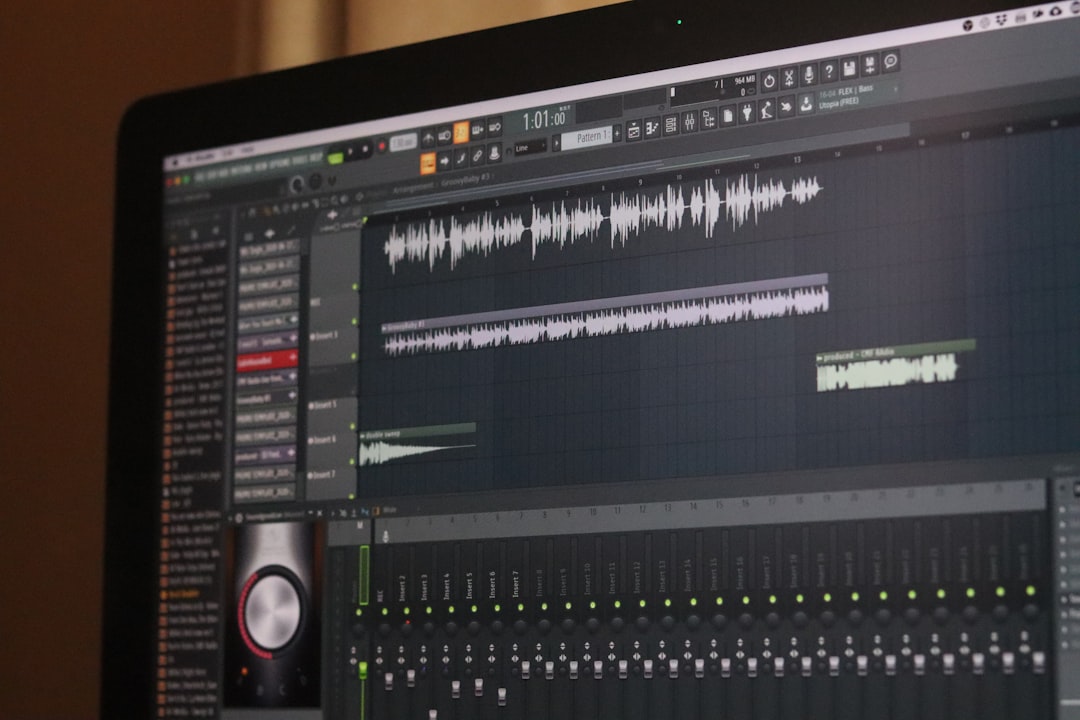
4. Lower Background Music Automatically
On Mac, you can select the audio and use Auto Ducking to automatically reduce music volume when dialogue plays.
Common Mistakes to Avoid
Even though adding music to iMovie is easy, beginners often make these mistakes:
- Music too loud: Overpowers speech and distracts viewers.
- Using copyrighted tracks: Leads to YouTube strikes or muted videos.
- No fade-out: Abrupt endings feel unprofessional.
- Wrong mood selection: The tone doesn’t match the visuals.
Being mindful of these issues instantly improves your video quality.
Tips for Choosing the Perfect Music
Here are some practical guidelines to select the right soundtrack:
- Match the pacing: Fast cuts pair well with upbeat music.
- Consider emotional tone: Happy, dramatic, inspirational, calm?
- Avoid lyrics in dialogue-heavy videos: Instrumentals work better.
- Loop smartly: Choose seamless tracks if the video is long.
Sometimes less is more. A subtle background track often works better than an overpowering anthem.
Can You Add Multiple Music Tracks?
Yes! iMovie allows multiple audio layers. You can:
- Combine background music and sound effects
- Add ambient noise for realism
- Layer intro and outro music
Just be careful with volume balancing to avoid muddy audio.
Final Thoughts
Learning how to add music to iMovie is one of the quickest ways to elevate your video projects from average to impressive. Whether you’re using built-in soundtracks, importing royalty-free music, or fine-tuning custom compositions, iMovie provides all the tools you need to create professional-quality audio integration.
The real magic happens when you go beyond simply adding a track and start shaping the sound—trimming precisely, adjusting volume levels, aligning beats, and fading transitions smoothly. With practice, you’ll develop an instinct for choosing the perfect soundtrack that enhances your storytelling and keeps your audience engaged.
Now that you understand the complete process, open iMovie and experiment. Try different tracks, play with mixing techniques, and see how dramatically music changes the experience of your video. You might be surprised at just how powerful the right soundtrack can be.