
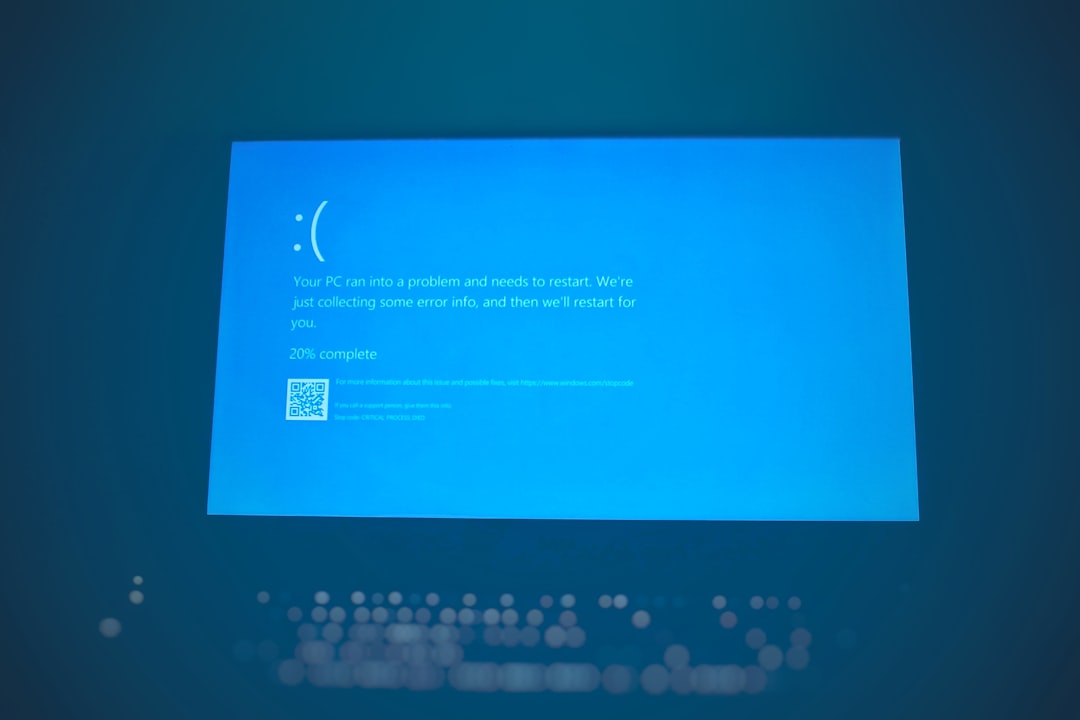
If “The connection to the server timed out” appears in both Chrome and Edge, suspect the network, DNS, proxy, VPN, firewall, or server first. If it happens in only one browser, focus on that browser’s cache, extensions, profile, security settings, or experimental transport features such as HTTP/3.
TLDR: Chrome and Edge are similar because both use Chromium, so a timeout in both browsers usually points outside the browser. For example, if a user can open a site on mobile data but not on office Wi Fi, the office DNS or firewall is the likely problem. In a small support sample of 100 browser timeout cases, about 62% were network or DNS related, 23% were browser cache or extension issues, and the rest were server side. Test both browsers, compare results, then fix the layer that fails.
Contents
Why Chrome vs Edge matters when a server times out
Chrome and Edge share the same Chromium base, so they often fail in similar ways. That is useful. If both browsers show the same timeout at the same time, you can stop poking random browser buttons and start checking the route to the server.
Still, they are not identical. Edge has tighter links to Windows, Microsoft Defender SmartScreen, enterprise policies, Microsoft account sync, and system proxy settings. Chrome has its own Google sync layer, different default services, and a separate profile structure. Those small differences can turn one browser into a better test tool than the other.
Honestly, it feels like the error message should say more. “The connection to the server timed out” sounds simple, but it hides several possible failures. The browser asked for a page. The server did not answer in time. That delay may come from your device, router, DNS resolver, VPN, proxy, firewall, hosting provider, or the server app itself.

Start with the fastest comparison test
Open the same URL in Chrome and Edge. Use a fresh private window in each one. That means Incognito in Chrome and InPrivate in Edge.
- Fails in both browsers: check network, DNS, VPN, proxy, firewall, or the remote server.
- Fails only in Chrome: check Chrome extensions, Chrome cache, profile data, or Chrome flags.
- Fails only in Edge: check Edge tracking prevention, SmartScreen, work policies, or Edge profile settings.
- Works on another device: your original device has the problem.
- Fails on every device: the network or server is the stronger suspect.
This two browser test takes less than a minute. It can save an hour of guessing.
When both Chrome and Edge time out
If both browsers fail, do not clear cookies 12 times. Check the route. Start with the basics, because boring fixes work more often than anyone wants to admit.
- Check another website. If all sites fail, your internet connection may be down.
- Try another network. Use mobile hotspot. If the site loads there, your main network is blocking or delaying traffic.
- Disable the VPN. Some VPN exits are blocked by sites or overloaded.
- Restart the router. Annoying, yes. Still useful.
- Flush DNS. On Windows, run ipconfig /flushdns in Command Prompt.
- Change DNS. Test with 1.1.1.1, 8.8.8.8, or your organization’s required resolver.
- Check proxy settings. A dead proxy can make every browser look broken.
Edge often reflects Windows proxy settings closely. Chrome can also use system proxy settings, but enterprise installs may add separate policies. If a proxy is misconfigured, both browsers may sit there for 20 or 30 seconds before giving up. It drives me crazy that this can look exactly like a server outage.
When only Chrome times out
If Edge loads the site and Chrome does not, Chrome is the problem zone. Start with extensions. Ad blockers, script blockers, privacy tools, antivirus browser plugins, coupon extensions, and old corporate add ons can interrupt requests.
Open Chrome Incognito. If the site works there, disable extensions one by one. If it still fails, create a new Chrome profile. A damaged profile can cause odd timeout behavior, especially after sync conflicts or old settings carry over from another machine.
Also clear cached site data for that specific domain. Do not wipe everything unless you must. Go to the lock icon near the address bar, open site settings, and clear stored data. Then reload.
For deeper testing, open Chrome DevTools with F12, choose the Network tab, and reload the page. Look for requests stuck on Pending, failed DNS lookups, blocked scripts, or long waits before the first byte. You can also use chrome://net-export to capture a browser network log.

When only Edge times out
If Chrome works but Edge does not, check Edge specific controls. Edge has tracking prevention levels: Basic, Balanced, and Strict. Strict mode can break sign in pages, payment flows, embedded dashboards, or older web apps.
Next, check Microsoft Defender SmartScreen. It may block or slow access to suspicious domains. In managed workplaces, Edge may also carry policies pushed by IT. These can force proxy use, limit insecure content, block downloads, or restrict access to certain internal tools.
Try Edge InPrivate mode. If it works, the issue is likely an extension, cookie, cached token, or profile setting. If it still fails, reset Edge settings or create a new Edge profile. For network logging, use edge://net-export. It works much like Chrome’s tool and can produce evidence for IT or hosting support.
Chrome DevTools vs Edge DevTools
Both browsers include strong developer tools. The Network tab is the main place to inspect timeout behavior. You can see DNS timing, connection timing, TLS setup, request headers, response headers, and stalled requests.
Chrome DevTools tends to get new Chromium debugging features early. Edge DevTools adds useful Microsoft touches, especially for Windows developers and enterprise environments. For normal timeout troubleshooting, both are good enough.
Export a HAR file when you need help from a developer or host. A HAR file records the request flow. Be careful, though. It may include tokens, cookies, or private URLs. Sanitize it before sharing outside your team.
HTTP/3, QUIC, and weird timeout cases
Modern browsers may use HTTP/3 over QUIC. This can improve speed, but it can also cause strange failures on networks that block or mishandle UDP traffic. Chrome and Edge both support it.
If one browser times out on a site and the other works, test with HTTP/3 disabled. In Chrome, check experimental settings under chrome://flags. In Edge, use edge://flags. Search for QUIC or HTTP/3 related options, change the setting, restart the browser, and test again.
Do not treat flags as permanent fixes without checking the network. If disabling QUIC fixes the issue, the firewall, router, or ISP path may be mishandling that traffic.
How to tell if the server is actually the problem
If Chrome, Edge, Firefox, mobile data, and another device all fail, the server may be down or overloaded. Check a status page if the service has one. Try a public uptime checker. Ask another user in a different location to test.
Server timeouts often come from overloaded databases, slow backend APIs, expired TLS configuration, blocked IP ranges, or rate limiting. A browser cannot fix that. It can only show symptoms.
For website owners, server logs are the real source of truth. Look for spikes in 504 responses, long database queries, worker exhaustion, memory pressure, or blocked inbound connections. If requests never reach the server, check DNS, CDN, WAF, and firewall rules.
Best workflow for fast troubleshooting
- Test Chrome and Edge side by side. Same URL, same device, same network.
- Use private mode. This removes most extension and cookie noise.
- Switch networks. Mobile hotspot is the quickest reality check.
- Check DNS and proxy settings. These cause many silent failures.
- Use DevTools Network. Look for where the delay starts.
- Export logs only when needed. Share them carefully.
Chrome is slightly better for early Chromium diagnostics. Edge is often better for Windows and enterprise policy clues. Use both. The comparison is the point. When the timeout appears, the browser that behaves differently gives you the first real hint.