
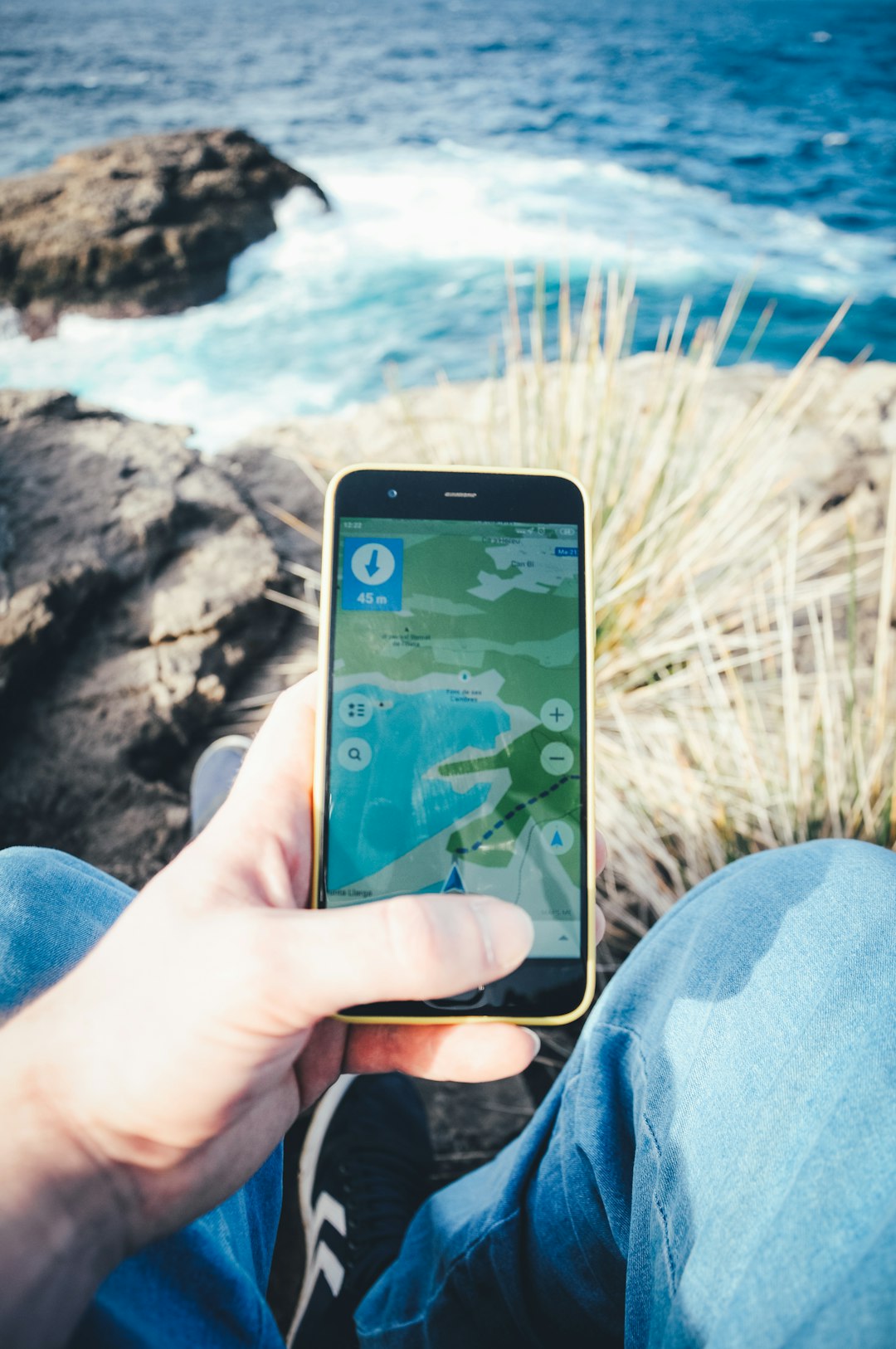
The short answer: iPhone and Android location sharing both show where you are on a map, but they do not show your texts, photos, calls, or secret snack runs unless your location gives you away. On iPhone, sharing usually happens through Find My or Messages. Apple says you can share for one hour, until the end of the day, or forever [source: Apple].
TLDR: If you share your location, the other person can usually see your live spot, your name, and sometimes your device status. Android through Google Maps may also show battery level. For example, if you share with a friend for 1 hour while walking home, they can watch your dot move street by street. A 2023 Pew report found that 90% of U.S. adults own a smartphone, so yes, this comes up a lot.
Contents
So, what can they actually see?
Both systems show the big thing first: your location.
That sounds obvious. But people often worry that location sharing is some magic spy button. It is not. It is more like saying, “Here is my dot on a map. Please do not be weird.”
Here is what someone may see when you share location:
- Your current position on a map.
- Your movement as you travel.
- Your name or profile photo, depending on the app.
- A time stamp, such as “now” or “5 minutes ago.”
- Your battery level in some Android sharing cases.
- Arrival or leaving alerts, if you allow them.
Here is what they cannot see just because you shared location:
- Your text messages.
- Your camera roll.
- Your search history.
- Your call log.
- Your app list.
- Your microphone or camera.
Good. Breathe.
iPhone location sharing: what others can see
On iPhone, location sharing lives mostly in Find My. It can also happen inside Messages. If you use Family Sharing, family members may have easier access to share and request locations.
When you share from an iPhone, the other person can usually see your location in the Find My app. They may see it as a dot on the map. They may also see a nearby address or place name.
If you are at a coffee shop, it may look like you are at that coffee shop. If GPS is fuzzy, it may show you next door. That is always fun when your cousin texts, “Why are you at the dentist?” and you are just buying a muffin.
iPhone sharing options are simple:
- Share for one hour.
- Share until end of day.
- Share indefinitely.
The annoying part? “Indefinitely” is easy to forget. You share once during a trip. Six months later, someone can still see you at the hardware store buying one screw. Great.
Android location sharing: what others can see
On Android, the most common method is Google Maps Location Sharing. It works across Android and iPhone too, as long as people use Google Maps.
When you share through Google Maps, the other person may see:
- Your live location on Google Maps.
- Your profile name and photo.
- Your battery level.
- Whether your device is charging, in some cases.
- How recently your location updated.
Google says Location Sharing can show your device’s battery power and whether it is charging [source: Google].
This is handy if someone is waiting for you. It is less handy when your battery is at 3% and everyone starts sending “charge your phone” texts. Yes, thanks, Gary. I am aware.
Android sharing usually gives you time choices too. You can share for a set time. Or you can keep sharing until you turn it off.

iPhone vs Android: the quick comparison
| Feature | iPhone | Android |
|---|---|---|
| Most common app | Find My | Google Maps |
| Live location | Yes | Yes |
| Time limits | Yes | Yes |
| Battery shown | Usually not for people sharing | Often yes in Google Maps |
| Works across phone brands | Best with Apple devices | Good across Android and iPhone |
Can they see where you have been?
Usually, no. Standard live sharing shows where you are now. It does not hand over your full location history.
But there is a tiny wrinkle. If someone watches your dot for 20 minutes, they can guess your path. If they get alerts when you arrive or leave a place, they can build a pattern over time.
That is not “history” in the official sense. But it can still feel creepy.
Can they get alerts when you leave or arrive?
Yes, sometimes.
On iPhone, people can create notifications in Find My when someone arrives or leaves a location. You may need to approve some repeated alerts. Apple has added checks here because, well, people can be strange.
On Android, Google Maps can also support notifications for shared locations in some setups. App versions and settings matter.
The main idea is simple. If you see an option for alerts, read it slowly. Do not tap like you are skipping a game ad.
How to stop sharing
On iPhone:
- Open Find My.
- Tap People.
- Choose the person.
- Tap Stop Sharing My Location.
On Android with Google Maps:
- Open Google Maps.
- Tap your profile picture.
- Tap Location sharing.
- Pick the person.
- Tap Stop.
Expect to waste 20 seconds finding the right menu the first time. These settings never feel like they are where your brain wants them to be.

Simple safety tips
- Use short sharing times. One hour is often enough.
- Check your sharing list monthly. Make it a habit.
- Do not share forever by default. Forever is a long time.
- Share with trusted people only. Not random group chat people.
- Turn it off after trips. Airports, concerts, dates, and hikes count.
Bottom line: iPhone and Android location sharing are useful. They help friends find you. They help family know you got home. But your little map dot says more than you think. Share it with care, and turn it off when the job is done.