

The fastest way to create AI videos is to start with a tight prompt, generate a short test clip, then rebuild the best version inside a video editor. Google’s Veo model was introduced for high quality video generation from prompts, including cinematic camera control and realistic motion [source: Google]. Sora, Runway, and Adobe Firefly follow the same basic pattern, but each one suits a different type of creator.
TLDR: A marketer can create a 10 second product teaser in under 30 minutes by writing one prompt, testing it in Sora or Runway, then polishing it in Adobe Premiere or another editor. For example, a coffee brand could ask for “steam rising from an espresso cup on a marble counter, soft morning light, slow push in,” then use the best clip as a social ad. Teams should expect to generate 5 to 12 clips before one feels usable. The cleanest workflow is idea, prompt, image reference, video generation, edit, captions, export.
Contents
Start With the Right Tool
Each platform has a clear strength. Google Gemini Veo works well for polished cinematic clips, especially when the user wants realistic motion and camera direction. OpenAI Sora is useful for story driven scenes, concept visuals, and prompt based experiments. Runway is strong for creators who want more control, image to video, masking, and editing tools in one place. Adobe Firefly suits brands, agencies, and editors who care about safer commercial use and smooth Adobe app support.
The catch is that none of these tools reads minds. Vague prompts create bland clips. A prompt like “make a cool video of a car” often produces average footage. A better prompt says: “A matte black electric car driving through a wet city street at night, reflections on asphalt, low camera angle, slow tracking shot, cinematic lighting, 8 seconds.”
Build a Prompt That Gives the AI Real Direction
A strong AI video prompt should include six parts:
- Subject: the main object, person, product, or scene.
- Action: what happens in the clip.
- Setting: room, street, forest, studio, office, or other location.
- Camera: close up, aerial shot, handheld feel, slow push in, pan, or tracking shot.
- Style: realistic, clay animation, anime, documentary, 3D render, or luxury ad.
- Length and format: 5 seconds, 10 seconds, vertical, square, or widescreen.
A prompt for all four tools could read: “A young chef plating fresh pasta in a warm restaurant kitchen, steam rising, close up on hands, shallow depth of field, slow camera push, realistic food commercial, 8 seconds, vertical format.”
How Google Gemini Veo Fits the Workflow
With Gemini Veo, the user starts inside the available Google interface, such as Gemini or a Google Labs video tool where access is enabled. The user enters a detailed prompt, selects the length or style options if offered, then generates a short clip. If image input is supported in that account, a product photo or brand reference can help keep the video closer to the goal.
Veo is a smart pick for mood, realism, and cinematic scenes. A travel company might create a beach resort preview, a real estate team might show a modern kitchen concept, and a teacher might make a short science visual. The user should keep early clips short. Five to eight seconds is easier to fix than a long clip with weird hands, odd motion, or drifting details.
How OpenAI Sora Can Be Used
Sora is built around text to video generation. The user writes a prompt, reviews the result, then adjusts the wording for action, timing, and scene detail. It is often useful for scenes that feel like tiny film shots. That includes concept trailers, explainer visuals, training clips, and social media story scenes.
For better Sora results, the user should avoid asking for too many actions at once. One shot should usually show one core action. For example, “a cyclist rides across a bridge at sunrise” is easier than “a cyclist rides, waves, drinks coffee, checks a phone, and passes three landmarks.” Honestly, it feels like one extra action can turn a clean clip into a strange little mess.
How Runway Helps With Control
Runway is often the most practical choice for hands on creators. It supports text to video, image to video, and editing features that help shape the result after generation. A user can upload a reference image, animate it, extend a shot, remove objects, or create variations.
A good Runway workflow starts with a still frame. The creator can design that frame in an image tool, upload it, then ask Runway to add motion. This can reduce visual drift. It also helps when brand colors, product shape, or character design matter.

How Adobe Firefly Supports Safer Brand Work
Adobe Firefly is a strong option for teams already using Creative Cloud. Its value is not only video generation. It also fits into editing work through Adobe tools, including features such as generative extension and asset creation. Adobe also promotes Firefly as being designed with commercial use in mind [source: Adobe].
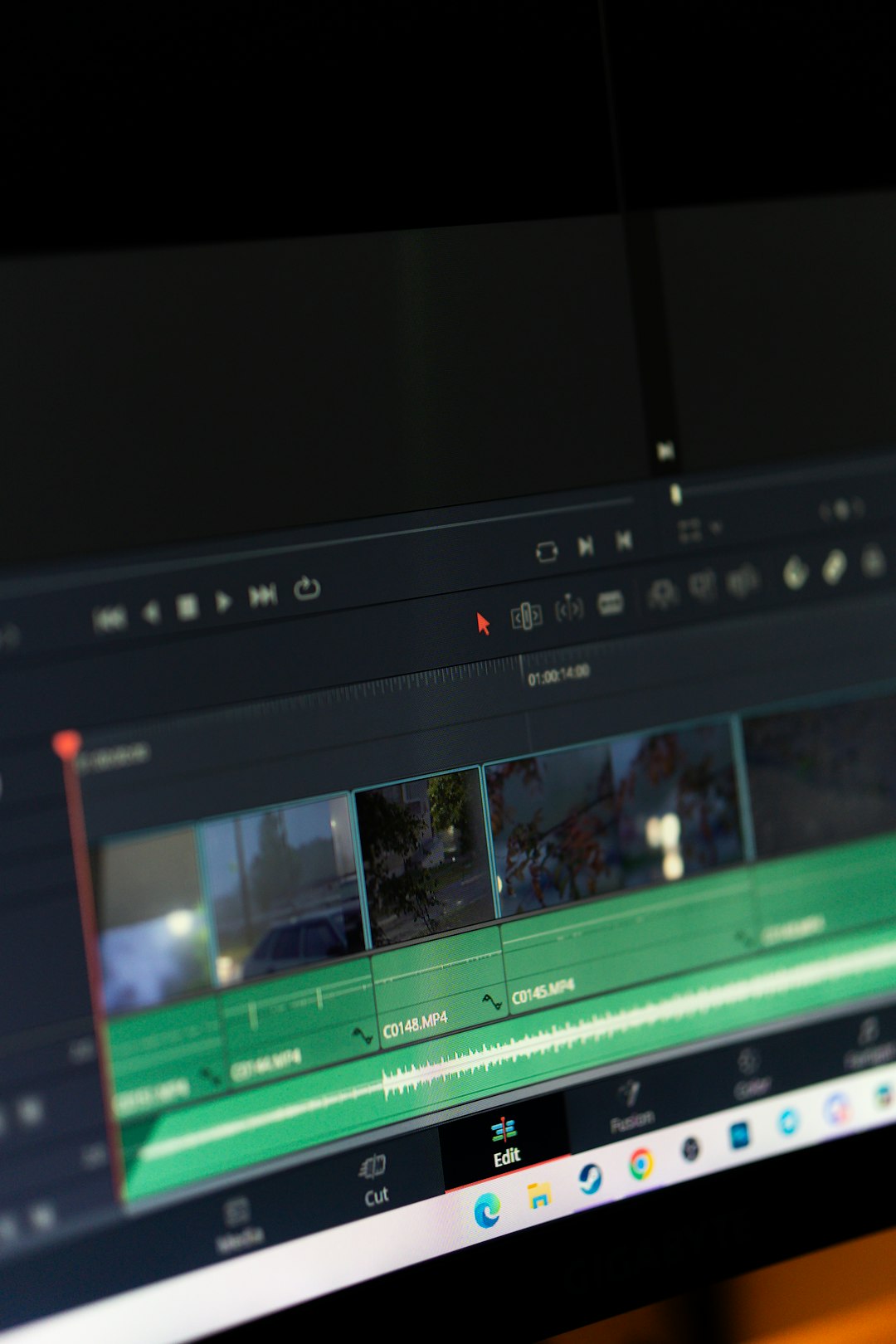
Firefly works well for ad mockups, background clips, social posts, and branded experiments. An editor can generate a short visual, bring it into Premiere Pro, add captions, music, logos, and color correction, then export it for TikTok, Instagram, YouTube Shorts, or a client deck.
A Simple Workflow That Works Across All Four
- Write the goal: define what the video must sell, teach, or show.
- Create one master prompt: include subject, action, setting, camera, style, and length.
- Generate short tests: make several 5 to 8 second clips.
- Pick the strongest clip: ignore almost good results if the motion looks broken.
- Revise the prompt: change one or two details at a time.
- Edit outside the generator: add titles, sound, cuts, captions, and brand assets.
- Export for the platform: use 9:16 for vertical social, 16:9 for YouTube, and 1:1 for feeds.
Expect to waste time on tiny fixes. A clip may look perfect until the final two seconds, when a face bends or a logo melts. The smartest move is to generate extra versions, cut around flaws, and keep the final video short.
Prompt Example for a Finished Social Ad
“A glass bottle of sparkling lemon drink sitting on crushed ice, bright yellow lemons around it, condensation on the bottle, studio lighting, slow rotating camera move, fresh summer commercial style, realistic, no text, 6 seconds, vertical video.”
This prompt can work in Gemini Veo, Sora, Runway, or Firefly. If the tool allows a reference image, the user should upload the real bottle photo. If the brand label must stay exact, the safer choice is often to generate the background and motion first, then add the real product label later in an editor.
Image not found in postmetaFAQ
Which AI video tool is best for beginners?
Runway is often the easiest starting point because it combines generation and editing controls. Firefly is also friendly for Adobe users.
Can AI videos be used for commercial projects?
They can, but the user should check each platform’s license, plan terms, and content rules. Brands should also avoid copying living artists, famous characters, or protected logos.
Is Sora better than Runway?
Not always. Sora can be strong for prompt based scenes and story ideas. Runway may be better when the creator needs image input, refinements, and practical editing tools.
How long should an AI generated video be?
Short clips work best. For ads and social posts, 5 to 12 seconds is a practical range. Longer clips usually need more edits and more retakes.
What makes an AI video look more professional?
Clear prompts, strong lighting details, simple action, clean editing, good sound, captions, and brand consistency make the biggest difference.