
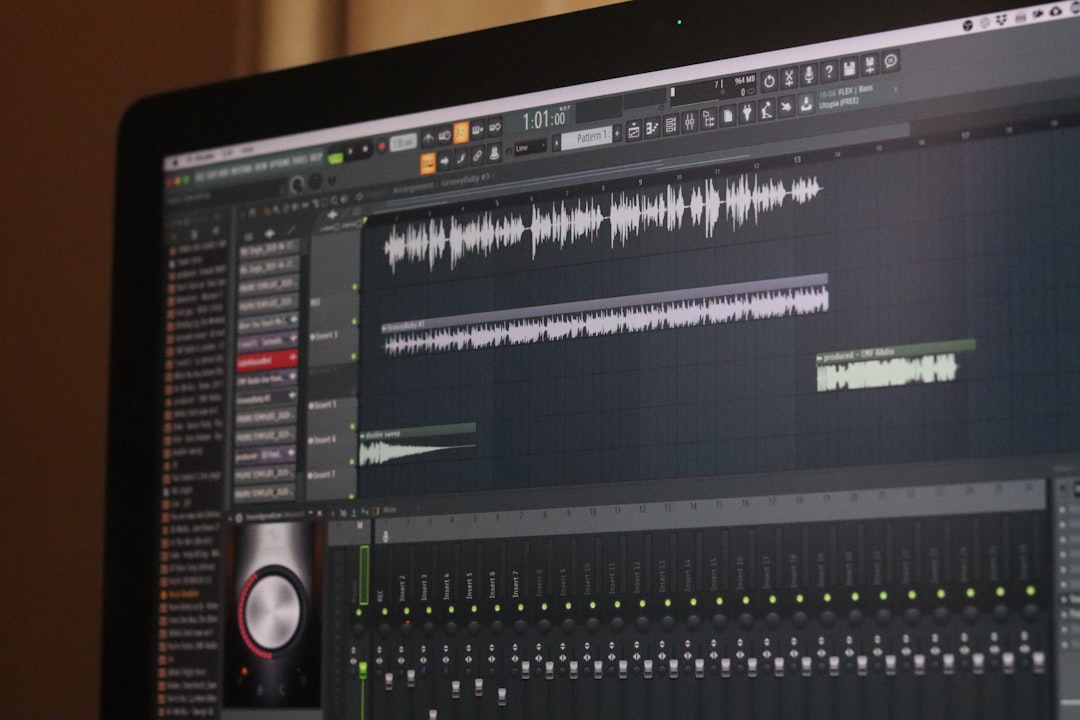
Audacity is the better choice when the final MP3 needs clean edits, fades, silence removal, or exact timing; Audio Joiner is better when several MP3 files simply need to be stitched together fast. Audacity is a free audio editor with timeline control, multi-track editing, and export settings, while browser-based Audio Joiner tools focus on quick file merging with fewer decisions. Audacity also documents MP3 export as part of its audio export workflow [source: Audacity Manual].
TLDR: For a podcast editor joining 6 interview clips into one 42-minute MP3, Audacity is usually the safer pick because it allows trimming, volume fixes, and fade-ins before export. For a student combining 3 lecture recordings in under 2 minutes, Audio Joiner is faster and less annoying. In simple merging tests, browser joiners often cut the workflow by several clicks, but Audacity wins when even one clip has bad volume, dead air, or rough starts.
Contents
Audacity vs. Audio Joiner: the quick verdict
Both tools can combine MP3 files into one track, but they serve different users. Audacity acts like a full editing studio. It gives control over waveforms, tracks, spacing, fades, and output quality. Audio Joiner acts like a shortcut. Files go in, order gets adjusted, one merged file comes out.
The catch is that “combine MP3 files” can mean two very different jobs. Sometimes it means place file 1 before file 2. Sometimes it means fix uneven sound, cut mistakes, remove gaps, and create a polished single track. That difference decides the winner.

When Audacity makes more sense
Audacity is best for users who need control. A music teacher may join lesson segments and add a fade between each part. A podcaster may combine an intro, interview, sponsor message, and outro. A researcher may merge voice notes while cutting repeated sections.
Audacity works well when the merged MP3 needs:
- Precise trimming at the start or end of each clip.
- Volume adjustment when one file is too quiet or too loud.
- Fade in and fade out for a smoother result.
- Noise reduction before the final export.
- Track alignment when audio must start at exact times.
To combine MP3 files in Audacity, the user imports the files, places them in order on the timeline, checks the spacing, and exports the result as one MP3. This takes more effort than a web tool, but the result can sound cleaner.
Honestly, it feels like overkill when the job is only two songs placed back to back. Audacity may take 30 to 60 seconds longer just to open, import, and show the waveform. Still, that extra time pays off when the project has rough sound or awkward gaps.
Basic Audacity workflow
- Open Audacity.
- Choose File > Import > Audio.
- Select the MP3 files.
- Place each clip in the correct order on the timeline.
- Use the Time Shift or clip movement tools if needed.
- Trim silence, normalize volume, or add fades.
- Choose File > Export Audio.
- Select MP3 and save the finished track.
A common mistake is leaving tiny gaps between clips. Audacity makes those gaps visible, which helps. Browser tools may hide them until the final file is played.
When Audio Joiner makes more sense
Audio Joiner is the better pick for speed. It usually runs in a browser, so there is no full editor to install. The user uploads MP3 files, drags them into order, checks any simple options, and downloads one combined track.
Audio Joiner works well when:
- The MP3 files are already clean.
- No serious editing is needed.
- The order is the only thing that matters.
- The user is on a shared or temporary computer.
- The file size is small enough for upload.
It drives me crazy that some browser joiners make the user wait through upload time before showing a file-size limit. A 250 MB batch can fail after a long wait, depending on the service and connection. For small files, though, the process is often much faster than opening a desktop editor.

Basic Audio Joiner workflow
- Open the Audio Joiner website.
- Click Add tracks or a similar upload button.
- Select the MP3 files.
- Drag the files into the correct order.
- Enable crossfade if the tool offers it.
- Click Join, Merge, or Combine.
- Download the final MP3.
This workflow is hard to beat for quick jobs. It is especially useful for school audio, rough demos, voice memos, and personal listening files. It is less ideal for confidential interviews, client audio, or long recordings, since files must usually be uploaded to a third-party server.
Sound quality: which tool protects the MP3 better?
MP3 is a compressed format. When an MP3 is edited and exported again, it may be re-encoded. That can reduce quality, especially at lower bitrates. Audacity gives the user more control over export bitrate and format. That matters for podcasts, music mixes, and paid work.
Audio Joiner may offer fewer export controls. Some tools keep things simple and output a standard MP3. That is fine for casual use, but it may not satisfy users who need a 320 kbps file, a specific sample rate, or a consistent format across many episodes.
For best results: source files should have the same sample rate, similar bitrate, and similar volume. If one file is 128 kbps and another is 320 kbps, the final track may still work, but the quality will only be as strong as the weakest source section.
Privacy and file size
This is where Audacity has a clear edge. It runs locally. Sensitive recordings stay on the computer unless the user shares them later. That matters for legal interviews, therapy notes, internal meetings, paid voice work, and client podcasts.
Audio Joiner depends on uploads. Many services delete files after processing, but cautious users still avoid uploading private audio. File size also matters. Browser tools can slow down with long recordings, weak Wi-Fi, or large batches.

Which one should different users choose?
- Podcasters: Audacity is the safer option. Editing, leveling, and export control matter.
- Students: Audio Joiner is faster for lectures and study recordings.
- Musicians: Audacity is better for demos, fades, and timing.
- Office users: Audio Joiner is fine for simple meeting clips, unless privacy is a concern.
- Content teams: Audacity gives more repeatable results for branded audio.
Final recommendation
Use Audio Joiner when the goal is speed. It is the right tool for clean MP3 files that only need to be placed in order. The process is simple, and the learning curve is low.
Use Audacity when the goal is quality. It takes longer, but it gives control over every part of the finished track. For anything public, paid, or sensitive, Audacity usually wins.
FAQ
- Can Audacity combine multiple MP3 files into one track?
- Yes. Audacity can import several MP3 files, place them on a timeline, and export them as one MP3 file.
- Is Audio Joiner easier than Audacity?
- Yes. Audio Joiner is usually easier for simple merging. It requires fewer steps and no editing knowledge.
- Does combining MP3 files reduce sound quality?
- It can. If the final file is re-encoded, some quality loss may happen. Higher export bitrates help reduce noticeable loss.
- Which tool is better for podcasts?
- Audacity is better for podcasts because it supports trimming, volume control, noise reduction, fades, and export settings.
- Is it safe to use an online Audio Joiner?
- It is usually fine for non-sensitive files. For private recordings, Audacity is safer because files stay on the local computer.
- Can Audio Joiner merge files without installing software?
- Yes. Most Audio Joiner tools run in a browser, so no installation is needed.