
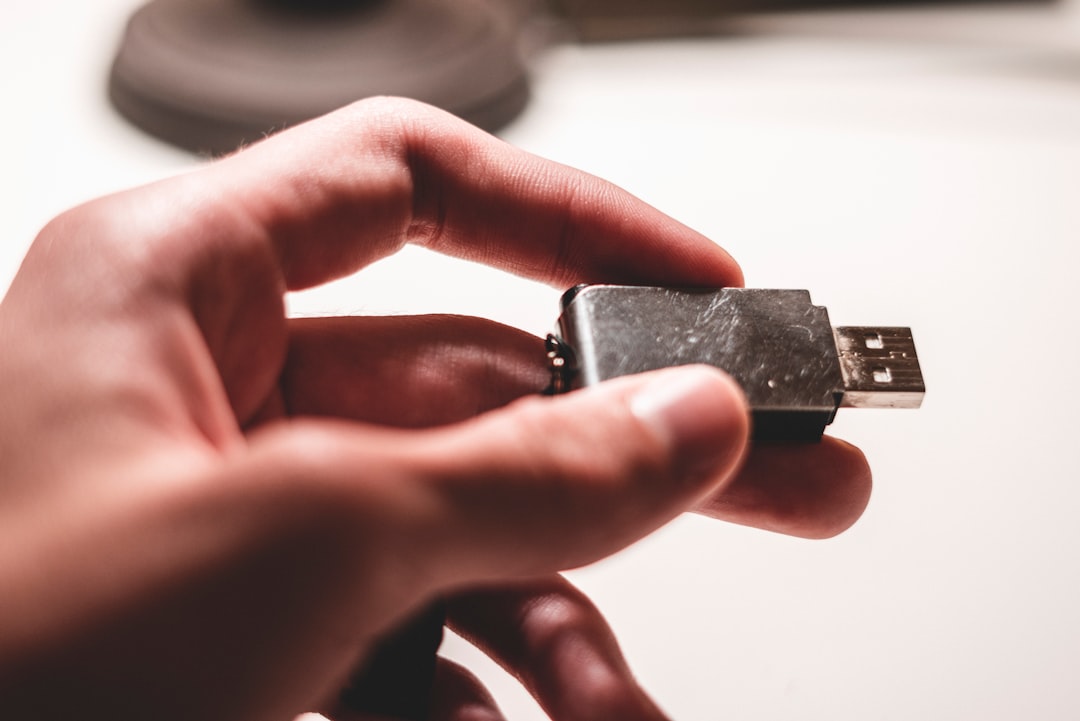
NTLite is the best all-round pick if you want real custom Windows 11 install media. FlyOOBE is the easiest helper for quick setup tweaks. WinReducer is fun for deep trimming, but it can feel fussy. Microsoft says Windows 11 install media needs a USB drive with at least 8 GB of space [source: Microsoft].
TLDR: Use NTLite if you want to build a clean Windows 11 ISO with drivers, updates, and removed junk. Use FlyOOBE if you are already installing Windows and want a smoother first setup, like skipping annoying setup screens on a test PC. Use WinReducer if you enjoy deep tweaks and do not mind trial and error. For example, in a small 5-PC home lab, a tuned ISO can save 20 to 30 minutes per machine.
Contents
Quick winner list
- Best overall: NTLite
- Best for beginners: FlyOOBE
- Best for fans of extreme trimming: WinReducer
- Best for repeat installs: NTLite
- Best “I just want less setup pain” tool: FlyOOBE

What these tools actually do
Windows 11 setup can be annoying. It asks for accounts. It pulls apps you may not want. It may miss drivers. Then you spend an hour clicking boxes like a tired robot.
That is where setup utilities help.
Custom installation media means a Windows installer that is already prepared for you. It can include drivers. It can remove apps. It can add updates. It can change settings before Windows even appears on the desktop.
Not every tool does the same job. That part matters.
FlyOOBE: the friendly quick fix
FlyOOBE is best when you want a simple helper around the Windows first-run setup. Think of it as a nice little toolbox for the “out of box” part of Windows.
It is not the best choice if your main goal is making a fully rebuilt ISO. That is not really its superpower. Its strength is speed and simplicity.
Use FlyOOBE if you want to:
- Clean up setup steps.
- Reduce first-boot friction.
- Apply common tweaks fast.
- Help less technical users finish setup.
The catch is… it can feel a bit limited if you came to build a perfect install image. You may start with FlyOOBE, then realize you still need another tool for drivers, updates, and component removal.
Best for: quick installs, test machines, family PCs, and users who hate setup screens.
NTLite: the serious ISO builder
NTLite is the tool I would pick for most custom Windows 11 media jobs. It lets you load a Windows image, change it, add things, remove things, and save it back as an ISO.
It is powerful, but still clear enough to understand after a little poking around. You can add storage drivers. You can add Windows updates. You can remove built-in apps. You can set options ahead of time.
NTLite supports Windows image editing and deployment features, including integration and removal tasks [source: NTLite].
Use NTLite if you want to:
- Add drivers before install.
- Slipstream updates into the ISO.
- Remove apps you never use.
- Create unattended installs.
- Reuse one image across many PCs.
It drives me crazy that Windows often installs extra bits you did not ask for. NTLite helps stop some of that before it starts. On older laptops, that can make setup feel less bloated from minute one.
Best for: power users, repair shops, IT staff, gamers, and anyone reinstalling Windows more than twice a year.

WinReducer: the tweak lover’s playground
WinReducer is for people who want many switches, knobs, and checkboxes. It can slim down Windows images and adjust lots of settings. If you enjoy tuning every little part, it can be fun.
But fun is not always smooth.
Expect to waste time on testing. Remove too much, and something odd may break later. Maybe search stops working. Maybe a feature will not open. Maybe a driver acts weird. Welcome to the tiny gremlin zone.
Use WinReducer if you want to:
- Cut down a Windows image.
- Try bold tweaks.
- Remove many components.
- Build a very lean install.
Best for: experimenters, minimalists, and users with spare time and a test PC.
Which one should you choose?
If you want the safest answer, choose NTLite. It has the best balance. It is strong, organized, and useful for real custom install media.
If you feel nervous, start with FlyOOBE. It is simpler. It will not throw a wall of image-editing choices at you.
If you like breaking things just to learn, try WinReducer. Use a spare PC or virtual machine. Please do not test wild removals on your only work laptop. That is how a simple Saturday becomes a reinstall marathon.
Simple comparison table
| Tool | Ease | Power | Best Use |
|---|---|---|---|
| FlyOOBE | Very easy | Light | Setup tweaks and first-run help |
| NTLite | Medium | High | Full custom Windows 11 ISO builds |
| WinReducer | Medium to hard | High | Deep trimming and experiments |
My practical pick
For most people, the best setup is simple. Use NTLite to make the install media. Use FlyOOBE for quick polish during or after setup. Keep WinReducer for test builds when you want to shrink Windows hard.
Always test your ISO in a virtual machine first. One broken image can cost more time than it saves. Also keep an untouched Windows 11 ISO nearby. It is your safety net.
Final call: NTLite wins for custom installation media. FlyOOBE wins for easy setup relief. WinReducer wins for brave tinkerers with coffee, patience, and a backup plan.